
 cPanel
How to Enable or Disable PHP's allow_url_fopen Using CloudLinux Selector in Plesk
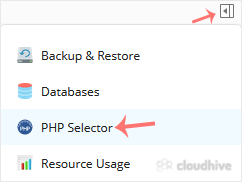
You can use CloudLinux Selector to enable or disable the allow_url_fopen directive in Plesk. 1. Log in to your Plesk account. 2. Click on the Pull icon in the right sidebar and choose PHP Selector. 3. Click on the Options menu. Note: If the Options page shows an error related to the native PHP ve...
cPanel
How to Enable or Disable PHP Extensions Using the CloudLinux Selector in Plesk
You can use CloudLinux Selector to enable or disable available PHP extensions in Plesk. 1. Log in to your Plesk account. 2. Click on the Pull icon in the right sidebar and choose PHP Selector. 3. Click on the Extensions menu. Note: If the Extensions page shows an error related to the native PHP v...
cPanel
How to Enable the Mailparse Extension of PHP Using CloudLinux Selector in Plesk
You can use CloudLinux Selector to enable the Mailparse extension in PHP via Plesk. 1. Log in to your Plesk account. 2. In the right-hand sidebar, click on PHP Selector. 3. Click on the Extensions menu. Note: If the Extensions page shows an error related to the native PHP version, change it to a ...
cPanel
How to Enable the GD Extension of PHP Using CloudLinux Selector in Plesk
You can use CloudLinux Selector to enable GD extension in PHP via Plesk. 1. Log in to your Plesk account. 2. Click on the Pull icon in the right sidebar and choose PHP Selector. 3. Click on the Extensions menu. Note: If the Extensions page shows an error related to the native PHP version, change ...
cPanel
How to Enable ionCube Loader Using CloudLinux Selector in Plesk
You can use CloudLinux Selector to enable ionCube Loader in Plesk. 1. Log in to your Plesk account. 2. Click on the Pull icon in the right sidebar and choose PHP Selector. 3. Click on the Extensions menu. Note: If the Extensions page shows an error related to the native PHP version, change it to ...
cPanel
How to Change the PHP Version via CloudLinux Selector in Plesk
You can use CloudLinux's Select PHP Version to change your website's PHP Version. CloudLinux provides various PHP Versions to choose from. 1. Log in to your Plesk account. 2. Click on the Pull icon in the right sidebar and choose PHP Selector. 3. To the right side of the Current PHP version, clic...
 cPanel
How to Remove an FTP Account in Plesk
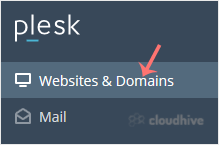
If you have created too many FTP User accounts and some have not been used, and you want to remove certain accounts, you can accomplish it by following this tutorial. 1. Log in to your Plesk account. 2. Click on Websites & Domains from the Sidebar Menu. 3. Under the list of Domain names, clic...
cPanel
How to Rename an FTP Username in Plesk
You can rename an FTP username in Plesk without deleting or making a new account. 1. Log in to your Plesk account. 2. Click on Websites & Domains from the Sidebar Menu. 3. Under the list of Domain names, click on the appropriate domain name. 4. From the Dashboard, under the Files & Databa...
cPanel
How to Change an FTP Account Password in Plesk
To change the main root FTP account, you have to change the password of your Plesk account. However, if you need to change the password of a specific FTP account, follow this instruction. 1. Log in to your Plesk account. 2. Click on Websites & Domains from the Sidebar Menu. 3. Under the list ...
cPanel
How to Create an FTP Account in Plesk
You can access the FTP account using the Plesk login details, which gives you full access to the home directory. However, if you want to create an FTP user account for a specific directory, you can create a separate FTP account. 1. Log in to your Plesk account. 2. Click on Websites & Domains ...
 cPanel
How to Rename an Email Address in Plesk
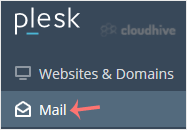
In this tutorial, you will learn how to rename an email address in Plesk. This is helpful when you want to update the email name without deleting the account. 1. Log in to your Plesk account. 2. Click on Mail from the Sidebar Menu. 3. From the email list, click on the email account you want to re...
cPanel
How to Change Email Account Password in Plesk
You can change your email password in Plesk through the following steps: 1. Log in to your Plesk account. 2. Click on Mail from the Sidebar Menu. 3. Under the email list, click the email account whose password you want to change. 4. In the Password field, enter a password or click on Generate to ...