
To change the main root FTP account, you have to change the password of your Plesk account. However, if you need to change the password of a specific FTP account, follow this instruction.
1. Log in to your Plesk account.
2. Click on Websites & Domains from the Sidebar Menu.

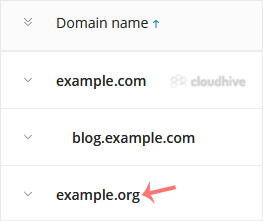
3. Under the list of Domain names, click on the appropriate domain name.
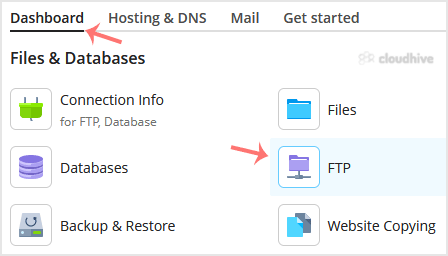
4. From the Dashboard, under the Files & Databases section, click on FTP.
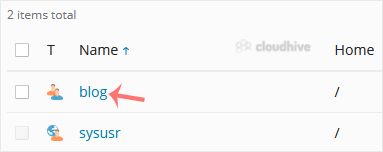
5. Click on the appropriate FTP account.
6. In the Password field, enter your new password or click on Generate to generate one. Click Show to copy the password.
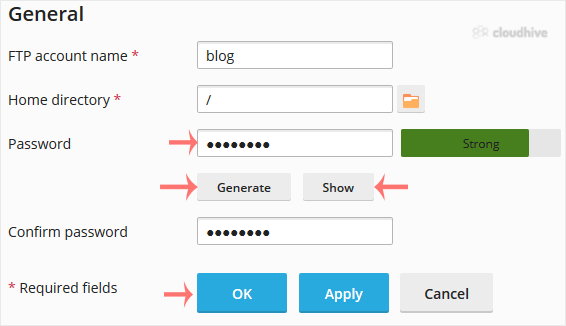
7. Confirm with OK.
The FTP account password has been successfully changed in Plesk. You can now use the new password to access your files through your FTP client.