
How to Create an FTP Account in Plesk

SShaltai-Boltai April 26, 2026 2 min read 0 views
How to Create an FTP Account in Plesk

You can access the FTP account using the Plesk login details, which gives you full access to the home directory. However, if you want to create an FTP user account for a specific directory, you can create a separate FTP account.

1. Log in to your Plesk account.

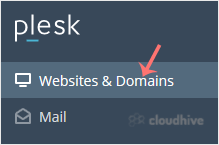
2. Click on Websites & Domains from the Sidebar Menu.

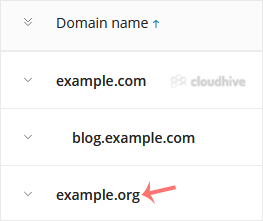
3. Under the list of Domain names, click on the appropriate domain.
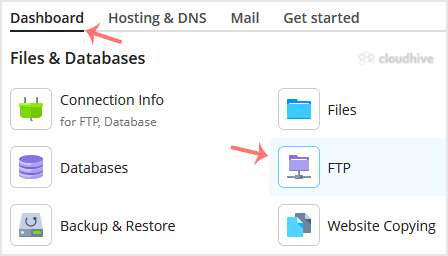
4. From the Dashboard, under the Files & Databases section, click on FTP.
5. Click on Add an FTP Account.

6. Fill in the following details:

  • FTP account name: Enter a name such as john. It will be used as an FTP username.
  • Home directory: Click on the directory icon to select the appropriate directory. If you grant access to a sub-directory, the user will not access outside the assigned sub-directory.
  • Password: Enter a password or click on Generate to generate one. Click Show to display the password and copy it.

7. Confirm with OK.

Now, you can access your FTP Account by using your newly-created FTP account like:

Host: Your website IP Address or enter your website name such as ftp.example.com. Replace example.com with your website address.

Username: john.

FTP Port: 21 (Default port is 21).

FTP Password: Your FTP Password.

The FTP account has been successfully created in Plesk.

//RELATED ARTICLESALL ARTICLES →
April 26, 2026 2 min read 0

How to Forcefully or Gracefully Shut Down the VPS in SolusVM 2

You can shut down the VPS in two ways - forcefully or gracefully in SolusVM 2. How to Gracefully shut down the VPS in SolusVM 2? 1. Log in to your SolusVM 2 Control Panel. 2. Under Projects, click on the project that contains your VPS. 3. Click on the appropriate VPS. 4. Click on Stop.5. Click Ye...

SShaltai-Boltai Read more
April 26, 2026 2 min read 0

How to Reboot/Restart VPS in SolusVM 2

You can restart VPS via the command line or SolusVM 2. How to Reboot/Restart a VPS via SolusVM 2? 1. Log in to your SolusVM 2 Control Panel. 2. Under Projects, click on the project that contains your VPS. 3. Click on the appropriate VPS. 4. Click on Restart located at the top right side.5. Choose...

SShaltai-Boltai Read more
April 26, 2026 2 min read 0

How to Check if Your VPS is Online or Offline in SolusVM 2

You can check the status of your SolusVM Virtual Private Server (VPS) to see if it is online or offline. You can find out VPS status from the client area or from the SolusVM 2 Control Panel.1. Log in to your SolusVM 2 Control Panel. 2. Under Projects, click on the project that contains your VPS. ...

SShaltai-Boltai Read more
April 26, 2026 2 min read 0

How to Log in to SolusVM 2 Control Panel

You can find the Control Panel URL, username (email address), and password in your VPS welcome email. SolusVM 2 login details example: Control Panel URL: https://server-hostname/login or use the IP address.Username: Your email address.Password: Your password. How to log in to SolusVM 2 Control Pa...

SShaltai-Boltai Read more