
 Tutorial
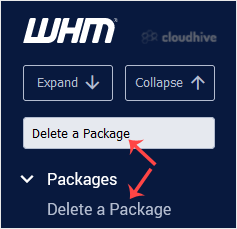
How to Delete a Package in WHM
You can remove the hosting package of your account, or, should you have root access, you can also remove the packages of other users from WHM.1. Log in to your WHM Account. 2. Go to Packages >> Delete a Package or type Delete a Package in the menu filter box. The option will appear. Click o...
 Tutorial
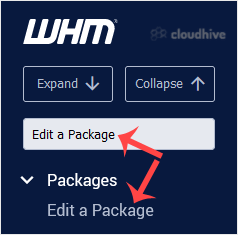
How to Edit a Hosting Package in WHM
You can edit the hosting package of your account. With root access, you can edit the packages of any user. 1. Log in to your WHM Account. 2. Go to Packages >> Edit a Package or type Edit a Package in the menu filter box. The option will appear. Click on it. 3. Select the package you want to...
 cPanel
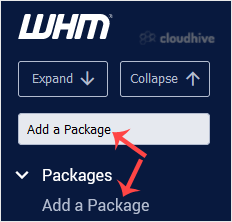
How to Create/Add a Package in the WHM
You can create predefined packages in the WHM for automation or another purpose.1. Log in to your WHM Account. 2. Go to Packages >> Add a Package or type Add a Package in the menu filter box. The option will appear. Click on it. 3. Enter the package name and change the resources according t...
 cPanel
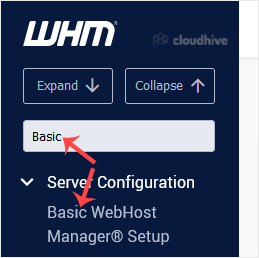
How to Set Custom/Private Nameservers in WHM
You can set up custom/private nameservers from WHM. 1. Log in to WHM Account. 2. Go to Server Configuration >> Basic WebHost Manager Setup or type Basic in the menu filter box. The option will appear. Click on it. 3. Under Nameservers, select Explicitly Set the Nameservers. Enter or change ...
 cPanel
How to Access the Web Host Manager or WHM
WHM or Web Host Manager is a reseller end control pane. It allows you to have administrator access to the backend of cPanel. After you place an order and make a successful payment, you will receive a welcome email with login details. You can access the WHM from an IP address or hostname you recei...
 cPanel
How to Download Files and Directories to Your Computer via FileZilla
You can download files from your website to your computer using the FileZilla Client.1. Open FileZilla FTP Client. 2. Enter your FTP host, username, and password. You can use your cPanel username and password as your FTP user and password. Then click on Quick Connect. Enter your domain name in th...
cPanel
How to Upload the Index File to Your Website via FileZilla
You can follow this tutorial to upload the files to your hosting account. 1. Open FileZilla FTP Client. 2. Enter your FTP host, username, and password. You can use your cPanel username and password as your FTP user and password. Then click on Quick Connect. Enter your domain name in the Host fiel...
cPanel
How to Create or Delete a Directory Using FileZilla
You can create or remove a directory on your website using the FileZilla FTP Client.1. Open the FileZilla FTP Client. 2. Enter your FTP host, username, and password. You can use your cPanel username and password as your FTP user and password. Then click on Quick Connect. Enter your domain name in...
cPanel
How to Access or Connect to the FTP via FileZilla
You can access your FTP Account using the FileZilla FTP Client or any FTP Client. 1. Open the FileZilla FTP Client.2. Enter your FTP host, username and password. You can use your cPanel login details as your FTP user and password. Enter your domain name such as ftp.example.com or example.com in t...
 cPanel
How to Install Filezilla Client on Windows
Installing the FileZilla FTP Client on Windows OS is easy. Just follow this tutorial. 1. Download the Filezilla FTP Client Installer file for your Windows OS. 2. Double click to Run the FileZilla FTP Setup File. If it shows a security warning, please read and accept it. Then click on Run. 3. The ...
 cPanel
How to Include or Exclude a Domain from AutoSSL in cPanel
You can include or exclude your domain from AutoSSL.If your domain is newly-created, wait a few hours for the cPanel to automatically install an SSL on your domain. You can check the last log of AutoSSL from cPanel > SSL/TLS Status > Certificate Status. 1. Log in to your cPanel account. 2. ...
cPanel
How to Install an SSL on Your Domain Using AutoSSL in cPanel
cPanel can automatically install an SSL on your domain within a few hours. However, even after 24 hours, if an SSL is not installed on your domain, first check the last log of the AutoSSL from cPanel > SSL/TLS Status > Certificate Status. If it shows any errors, try to fix them or open a ti...