

How to Create or Delete a Directory Using FileZilla

SShaltai-Boltai April 26, 2026 2 min read 0 views
How to Create or Delete a Directory Using FileZilla

You can create or remove a directory on your website using the FileZilla FTP Client.


1. Open the FileZilla FTP Client.


2. Enter your FTP host, username, and password. You can use your cPanel username and password as your FTP user and password. Then click on Quick Connect.

  • Enter your domain name in the Host field, such as ftp.example.com or example.com.


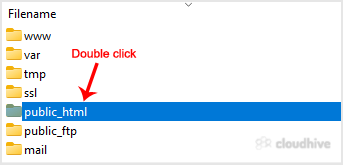
3. Now, should you wish to create a directory inside the public_html folder, open it by clicking twice on the public_html directory or any other directory where you want to create a new folder.

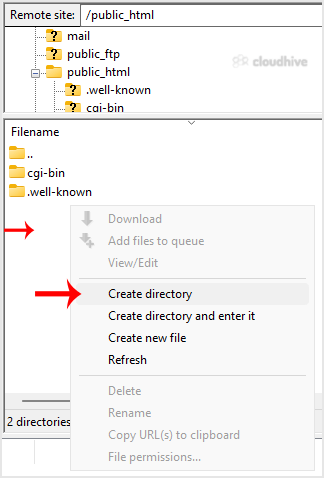
4. Right-click in the remote directory on the right side and select Create directory from the context menu.

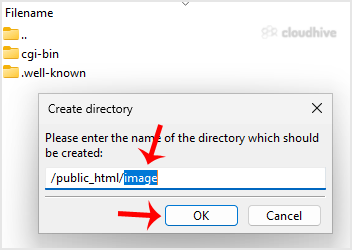
5. Enter the directory name, such as images or any other directory name you want to create.

6. Your newly-created directory will appear. Double-click on it to enter your newly-created directory.

How to Delete or Remove a directory?

1. Right-click on any directory you wish to delete.

2. Choose the Delete option in the context menu and then confirm with Yes.
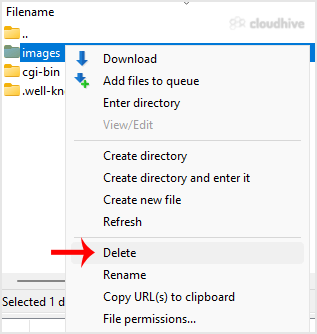

You can use this method to remove any directory or file.

//RELATED ARTICLESALL ARTICLES →
April 26, 2026 2 min read 0

How to Forcefully or Gracefully Shut Down the VPS in SolusVM 2

You can shut down the VPS in two ways - forcefully or gracefully in SolusVM 2. How to Gracefully shut down the VPS in SolusVM 2? 1. Log in to your SolusVM 2 Control Panel. 2. Under Projects, click on the project that contains your VPS. 3. Click on the appropriate VPS. 4. Click on Stop.5. Click Ye...

SShaltai-Boltai Read more
April 26, 2026 2 min read 0

How to Reboot/Restart VPS in SolusVM 2

You can restart VPS via the command line or SolusVM 2. How to Reboot/Restart a VPS via SolusVM 2? 1. Log in to your SolusVM 2 Control Panel. 2. Under Projects, click on the project that contains your VPS. 3. Click on the appropriate VPS. 4. Click on Restart located at the top right side.5. Choose...

SShaltai-Boltai Read more
April 26, 2026 2 min read 0

How to Check if Your VPS is Online or Offline in SolusVM 2

You can check the status of your SolusVM Virtual Private Server (VPS) to see if it is online or offline. You can find out VPS status from the client area or from the SolusVM 2 Control Panel.1. Log in to your SolusVM 2 Control Panel. 2. Under Projects, click on the project that contains your VPS. ...

SShaltai-Boltai Read more
April 26, 2026 2 min read 0

How to Log in to SolusVM 2 Control Panel

You can find the Control Panel URL, username (email address), and password in your VPS welcome email. SolusVM 2 login details example: Control Panel URL: https://server-hostname/login or use the IP address.Username: Your email address.Password: Your password. How to log in to SolusVM 2 Control Pa...

SShaltai-Boltai Read more