
 cPanel
How to Create a Database in Plesk
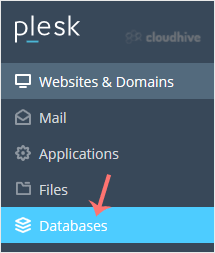
You can create a database in Plesk by following this tutorial. 1. Log in to your Plesk account. 2. Click on Databases from the Sidebar Menu. 3. Click on Add Database. 4. Under Add a Database, fill in the following details: Database Name: Your database name, such as blog. Related Site: Choose an a...
 cPanel
How to Update the Email Address of a Scheduled Task in Plesk
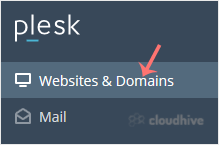
Follow this tutorial to update the email address of Scheduled Tasks (Cron Jobs) in Plesk. 1. Log in to your Plesk account. 2. Click on Websites & Domains from the Sidebar Menu. 3. Click on the Pull icon in the right sidebar and choose Scheduled Tasks. 4. Under the Command list, locate your ta...
cPanel
How to Edit or Delete Scheduled Tasks in Plesk
Follow this tutorial to edit or delete Scheduled Tasks (Cron Jobs) in Plesk. How to Edit a Scheduled Task? 1. Log in to your Plesk account. 2. Click on Websites & Domains from the Sidebar Menu. 3. Click on the Pull icon in the right sidebar and choose Scheduled Tasks. 4. Under the Command lis...
cPanel
How to Create Scheduled Tasks in Plesk
Follow this tutorial to create Scheduled Tasks (Cron Jobs) in Plesk. 1. Log in to your Plesk account. 2. Click on Websites & Domains from the Sidebar Menu. 3. Click on the Pull icon in the right sidebar and choose Scheduled Tasks. 4. Under Scheduled Tasks, click on Add Task. 5. Enter the foll...
cPanel
How to Enable Isolated Domain Views in Plesk
In Plesk, you can simplify domain management by enabling Isolated Domain Views. This feature ensures each domain opens on a separate page, allowing you to focus on one domain at a time, free from distractions or the risk of mistakes when managing multiple domains. 1. Log in to your Plesk account....
 cPanel
How to Check Disk and Bandwidth Usage in Plesk
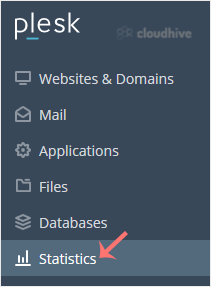
You can quickly check disk and bandwidth usage in Plesk. 1. Log in to your Plesk account. 2. Click on Statistics from the Sidebar Menu. 3. Click on the appropriate domain in case of multiple domains. 4. You can see the disk usage from the left side. The right side displays your traffic/bandwidth ...
 cPanel
How to Edit a File in the Plesk File Manager
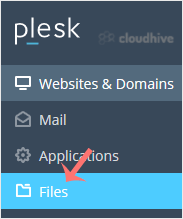
Learn how to edit a file directly in the Plesk File Manager. This is useful for making quick changes to your website files without needing an FTP client. 1. Log in to your Plesk account. 2. Click on Files from the Sidebar Menu. 3. Under File Manager, enter the httpdocs directory. 4. Hover over th...
cPanel
How to Create a Directory or Files in Plesk File Manager
Learn how to create new folders or files in the Plesk File Manager. This is useful for adding and managing files directly from the panel. How to Create a Directory in Plesk File Manager 1. Log in to your Plesk account. 2. Click on Files from the Sidebar Menu. 3. Click on the appropriate domain in...
cPanel
How to Upload Files via the Plesk File Manager
Follow these steps to upload files using the Plesk File Manager. 1. Log in to your Plesk account. 2. Click on Files from the Sidebar Menu. 3. Under File Manager, enter the httpdocs directory. 4. Click on the plus icon and choose Upload File. Then select the file you want to upload from your compu...
 cPanel
How to Change the Language of a Plesk Panel
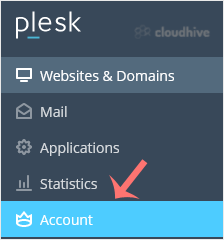
Follow these steps to change the language of the Plesk Panel. 1. Log in to your Plesk account. 2. Click on Account from the Sidebar Menu. 3. Click on My Profile. 4. Scroll down to the Plesk language and choose the appropriate language from the drop-down menu. 5. Click Apply. The language in your ...
cPanel
How to Change the Plesk Account's Contact Details
Follow these steps to change your Plesk account's contact details. 1. Log in to your Plesk account. 2. Click on Account from the Sidebar Menu. 3. Click on My Profile. 4. Click on Contact Details. 5. Update the details as per your requirements. 6. Click Apply. You will see a success message signif...
cPanel
How to Update a Plesk Account's Email Address
Follow these steps to change your Plesk contact email address. 1. Log in to your Plesk account. 2. Click on Account from the Sidebar Menu. 3. Click on My Profile. 4. Enter the new primary email address in the Email Address field. Choose the appropriate domain from the drop-down menu if you have m...