
How to Upload Files via the Plesk File Manager cPanel

How to Upload Files via the Plesk File Manager

Follow these steps to upload files using the Plesk File Manager.

1. Log in to your Plesk account.

2. Click on Files from the Sidebar Menu.

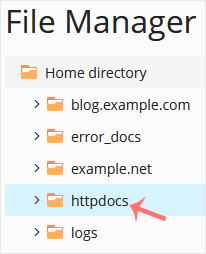
3. Under File Manager, enter the httpdocs directory.
4. Click on the plus icon and choose Upload File. Then select the file you want to upload from your computer.
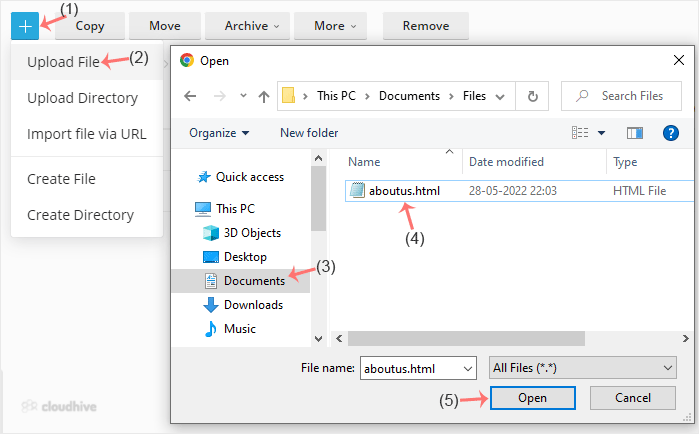
5. Click Open.

Tips: You can select multiple files. Press and hold down the CTRL key on the keyboard and click on the files you want to select.

Share: Twitter LinkedIn WhatsApp

Expert Knowledge

Articles written by certified WHMCS developers and hosting professionals.

Regularly Updated

Fresh content published regularly to keep you up to date with the latest.

Community Focused

Content built around real questions and challenges from our community.

Actionable Tips

Every article includes step-by-step guides you can apply immediately.