
 Security
How to Access VPS via VNC in Virtualizor
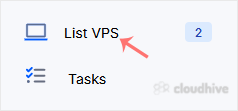
You can access your VPS via VNC in an emergency, such as when a firewall blocks your IP, the Internet connection on the VPS is not working, and you cannot access SSH. Also, you can use VNC for OS installation/reinstallation. 1. Log in to your Virtualizor Control Panel. 2. From the left side panel...
 Security
How to Change Your Virtualizor Account Password
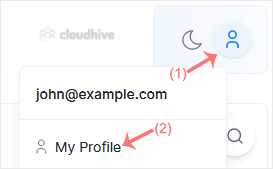
If you can access your Virtualizor VPS control panel, you can easily change your Virtualizor password. We recommend you to change the password frequently and use a strong one. 1. Log in to your Virtualizor Control Panel. 2. From the top right-hand side, click on Profile Avatar and navigate to My ...
 Security
How to Link a Debit or Credit Card to Your PayPal Account
Follow this tutorial to link your Debit or Credit Card to your PayPal Account. 1. Log in to your PayPal Account. 2. On top of the menu, click on Wallet. 3. Click on Link a card. 4. Click on Debit or Credit Card, or any other appropriate option shown in your PayPal account. 5. Enter your card deta...
 Security
How to Change the Password of a Plesk Account
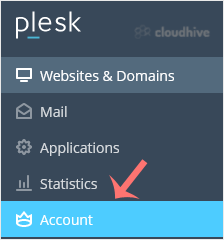
Follow these steps to change your Plesk account password. 1. Log in to your Plesk account. 2. Click on Account from the Sidebar Menu. 3. Click on My Profile. 4. In the password field, enter your password or click Generate to generate one. 5. Click OK to confirm the changes. You can now log in wit...
 Security
How to Change the Password of the WHM Root Account in WHM
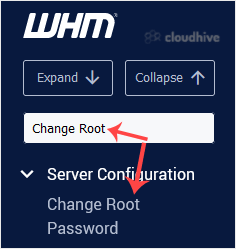
You can change the root user account password from WHM. 1. Log in to your WHM Root Account. 2. Go to Server Configuration >> Change Root Password or type Change Root in the menu filter box. The option will appear. Click on it. 3. Enter your new password or use the password generator option ...
 Security
How to Install Webmin on Linux
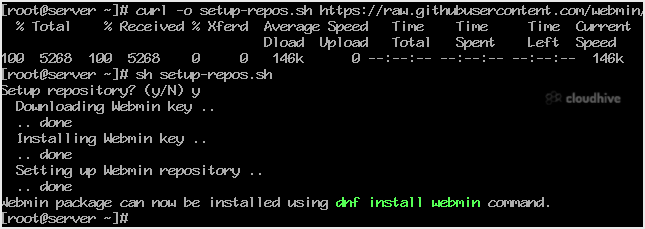
Webmin is a free hosting control panel with easy installation. It takes only 5 to 10 minutes, and the configuration is simple. What are the requirements? - Fresh CentOS, AlmaLinux, RockyLinux, Fedora, Debian, Kali or Ubuntu installed on your VPS/Server. How to install Webmin? Step 1: Log in to SS...
 Security
How to Change the Password of a WordPress Account
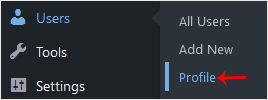
You can easily change the password if you have access to your WordPress account.1. Log in to the WordPress dashboard.2. From the Dashboard menu, go to Users and click on Profile.3. Scroll down to Account Management and click on Set New Password.4. Copy the password to a safe place and click on Up...
 Security
How to Install a WordPress Plugin
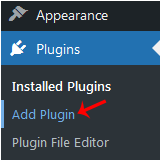
WordPress plugins are very useful. You can easily install a plugin from the WordPress dashboard.1. Log in to the WordPress dashboard.2. From the Dashboard menu, go to Plugins and click on Add Plugin.3. Use the Search filter to find the plugins. Type Security to find plugins related to it.4. The a...
 Security
How to Change the VNC Password in SolusVM 1
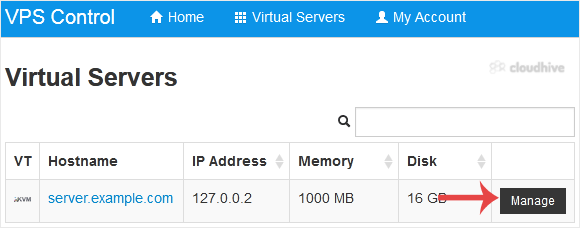
You can change the VNC password using SolusVM 1.1. Log in to your SolusVM 1 Control Panel.2. If you have multiple VPSs, select the appropriate one.3. Scroll down. Under the VNC Password tab, enter your new password. Then click on Change.4. Click Yes to confirm and then reboot your VPS. You have s...
Security
How to Change the VPS Root/Admin Password in SolusVM 1
You can change the root/admin password of your VPS Operating System using SolusVM 1.1. Log in to your SolusVM 1 Control Panel.2. If you have multiple VPSs, select the appropriate one.3. Scroll down. Under the Root/Admin Password tab, if it shows the password field, enter your password and click o...
Security
How to Manually Install/Reinstall an OS Using SolusVM 1 for a Customized Installation
SolusVM 1's automatic reinstall option does not allow you to modify or create a custom partition. However, you can create such a partition through a manual installation/reinstallation of an OS. You can follow these instructions to install/reinstall an OS manually.1. Log in to your SolusVM 1 Contr...
Security
How to Reinstall OS Using SolusVM 1 OS-Reinstaller
You can easily Install/Reinstall the operating system using SolusVM 1. However, note that this option will destroy all the data on your VPS.1. Log in to your SolusVM 1 Control Panel.2. If you have multiple VPSs, select the appropriate one.3. Click on Reinstall.4. Select the operating system which...