
If you can access your Virtualizor VPS control panel, you can easily change your Virtualizor password. We recommend you to change the password frequently and use a strong one.
1. Log in to your Virtualizor Control Panel.
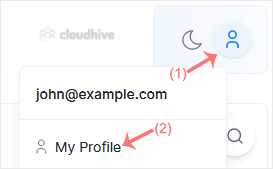
2. From the top right-hand side, click on Profile Avatar and navigate to My Profile.
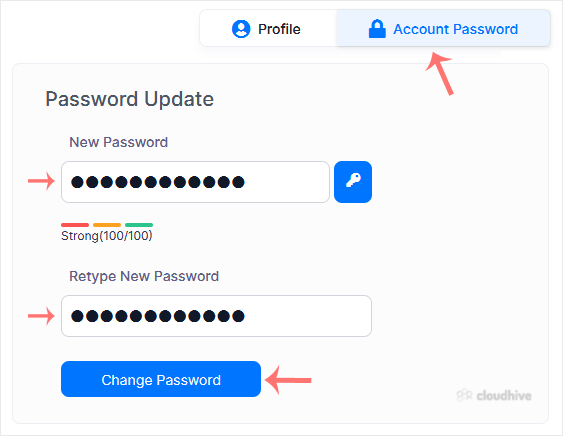
3. Click on the Account Password tab. Enter your new password and then click on Change Password.
Your Virtualizor account password has been successfully changed. You can now log in with your new password.