
 cPanel
How to Install Kirby via Softaculous in cPanel
Softaculous helps you install web applications very easy. Please, follow the steps below to install Kirby. 1. Log in to your cPanel account. 2. In the Software section, click on Softaculous Apps Installer.3. cPanel will redirect you to the Softaculous interface.4. On the left side, type Kirby in ...
cPanel
How to Install Composr via Softaculous in cPanel
Softaculous helps you install web applications very easy. Please, follow the steps below to install Composr. 1. Log in to your cPanel account. 2. In the Software section, click on Softaculous Apps Installer.3. cPanel will redirect you to the Softaculous interface.4. On the left side, type Composr...
cPanel
How to Install Pluck via Softaculous in cPanel
Softaculous helps you install web applications very easy. Please, follow the steps below to install Pluck. 1. Log in to your cPanel account. 2. In the Software section, click on Softaculous Apps Installer.3. cPanel will redirect you to the Softaculous interface.4. On the left side, type Pluck in ...
cPanel
How to Install Unclassified NewsBoard via Softaculous in cPanel
Softaculous helps you install web applications very easy. Please, follow the steps below to install Unclassified NewsBoard. 1. Log in to your cPanel account. 2. In the Software section, click on Softaculous Apps Installer.3. cPanel will redirect you to the Softaculous interface.4. On the left sid...
cPanel
How to Install TangoBB Forum via Softaculous in cPanel
Softaculous helps you install web applications very easy. Please, follow the steps below to install Unclassified TangoBB. 1. Log in to your cPanel account. 2. In the Software section, click on Softaculous Apps Installer.3. cPanel will redirect you to the Softaculous interface.4. On the left side,...
 cPanel
How to Install cPanel
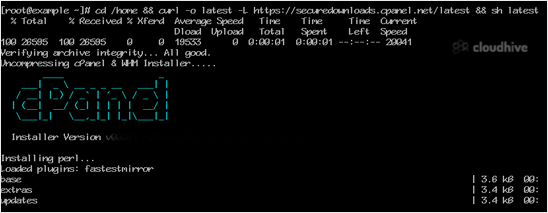
cPanel is the #1 Hosting Control Panel in the web hosting industry. You can easily install it.What are the requirements?- Fresh Ubuntu or AlmaLinux OS installed on your VPS/Server.How to install cPanel?1. Log in to your VPS/Server via the SSH Client.2. Copy the following command and paste it into...
 Tutorial
How to Delete a WordPress Theme
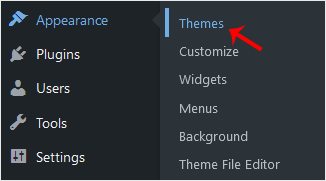
You should remove unused themes. It is considered good practice to protect your WordPress website from vulnerabilities by not keeping old, unused themes.1. Log in to the WordPress dashboard.2. From the Dashboard menu, go to Appearance and click on Themes.3. Hover your mouse on a theme you want to...
Tutorial
How to Install a WordPress Theme Manually
You can easily install a WordPress theme and activate it manually. Please, follow the steps below to do so. 1. Log in to the WordPress dashboard.2. From the Dashboard menu, go to Appearance and click on Themes. 3. Click on Add Theme. 4. Choose Upload Theme.5. Click on Browse and choose the theme ...
Tutorial
How to Install a New WordPress Theme
You can install a new WordPress theme without having any technical knowledge. It is so easy and automated.1. Log in to the WordPress dashboard.2. From the Dashboard menu, go to Appearance and click on Themes.3. Click on Add Theme.4. You can search for a theme using the search bar or browse the th...
 Security
How to Change the VNC Password in SolusVM 1
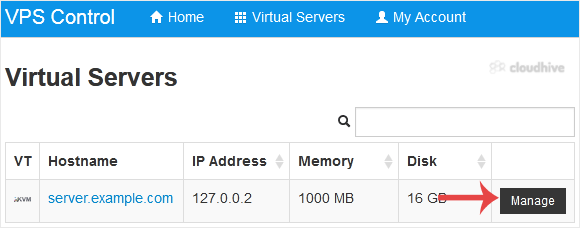
You can change the VNC password using SolusVM 1.1. Log in to your SolusVM 1 Control Panel.2. If you have multiple VPSs, select the appropriate one.3. Scroll down. Under the VNC Password tab, enter your new password. Then click on Change.4. Click Yes to confirm and then reboot your VPS. You have s...
Security
How to Change the VPS Root/Admin Password in SolusVM 1
You can change the root/admin password of your VPS Operating System using SolusVM 1.1. Log in to your SolusVM 1 Control Panel.2. If you have multiple VPSs, select the appropriate one.3. Scroll down. Under the Root/Admin Password tab, if it shows the password field, enter your password and click o...
Tutorial
How to Change Hostname in SolusVM 1
You can change the hostname in SolusVM 1.1. Log in to your SolusVM 1 Control Panel.2. If you have multiple VPSs, select the appropriate one.3. Scroll down. Under the Hostname tab, enter your hostname in the text field. Then click on Change.4. A reboot is required so that the saved changes can tak...