
How to Delete a WordPress Theme

SShaltai-Boltai April 26, 2026 2 min read 0 views
How to Delete a WordPress Theme

You should remove unused themes. It is considered good practice to protect your WordPress website from vulnerabilities by not keeping old, unused themes.


1. Log in to the WordPress dashboard.

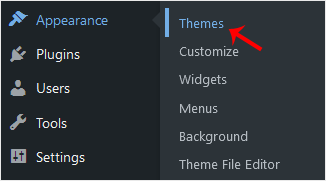
2. From the Dashboard menu, go to Appearance and click on Themes.


3. Hover your mouse on a theme you want to remove. Click on Theme Details.


4. Click on Delete and Confirm with OK. You can find the Delete option at the bottom right area of the window.


You have successfully removed the theme.

//RELATED ARTICLESALL ARTICLES →
April 26, 2026 2 min read 0

How to Change Hostname in SolusVM 2

You can change the hostname in SolusVM 2.1. Log in to your SolusVM 2 Control Panel. 2. Under Projects, click on the project that contains your VPS. 3. Click on the appropriate VPS. 4. Click on the Edit icon at the top right side. Enter your new hostname, then click Save. 5. A reboot is required s...

SShaltai-Boltai Read more
April 26, 2026 2 min read 0

How to Enable or Disable PPP in SolusVM 2

PPP means Point-to-Point Protocol. It is mainly used for older types of VPNs like PPTP. When PPP is enabled, it allows your VPS to send and receive data securely over that connection. If you do not have such use then you can keep it stay disabled.1. Log in to your SolusVM 2 Control Panel. 2. Unde...

SShaltai-Boltai Read more
April 26, 2026 2 min read 0

How to Enable or Disable TUN/TAP in SolusVM 2

SolusVM 2 allows you to enable or disable TUN/TAP.1. Log in to your SolusVM 2 Control Panel. 2. Under Projects, click on the project that contains your VPS. 3. Click on the appropriate VPS. 4. Click on the Settings tab. 5. Toggle TUN/TAP to enable it, then click Change to proceed. 6. After making...

SShaltai-Boltai Read more
April 26, 2026 2 min read 0

How to Start/Boot Your VPS in SolusVM 2

If your VPS is down/offline, you can start it using SolusVM 2.1. Log in to your SolusVM 2 Control Panel. 2. Under Projects, click on the project that contains your VPS. 3. Click on the appropriate VPS. 4. Click on Start.It may take some time for the VPS to start.

SShaltai-Boltai Read more