
 cPanel
How to Install PluXml via Softaculous in cPanel
Softaculous helps you install web applications very easy. Please, follow the steps below to install PluXml. 1. Log in to your cPanel account. 2. In the Software section, click on Softaculous Apps Installer.3. cPanel will redirect you to the Softaculous interface.4. On the left side, type PluXml i...
cPanel
How to Install Saurus CMS via Softaculous in cPanel
Softaculous helps you install web applications very easy. Please, follow the steps below to install Saurus CMS. 1. Log in to your cPanel account. 2. In the Software section, click on Softaculous Apps Installer.3. cPanel will redirect you to the Softaculous interface.4. On the left side, type Saur...
cPanel
How to Install liveSite via Softaculous in cPanel
Softaculous helps you install web applications very easy. Please, follow the steps below to install liveSite. 1. Log in to your cPanel account. 2. In the Software section, click on Softaculous Apps Installer.3. cPanel will redirect you to the Softaculous interface.4. On the left side, type liveSi...
cPanel
How to Install Anchor CMS via Softaculous in cPanel
Softaculous helps you install web applications very easy. Please, follow the steps below to install Anchor CMS. 1. Log in to your cPanel account. 2. In the Software section, click on Softaculous Apps Installer.3. cPanel will redirect you to the Softaculous interface.4. On the left side, type Anch...
cPanel
How to Install OctoberCMS via Softaculous in cPanel
Softaculous helps you install web applications very easy. Please, follow the steps below to install OctoberCMS. 1. Log in to your cPanel account. 2. In the Software section, click on Softaculous Apps Installer.3. cPanel will redirect you to the Softaculous interface.4. On the left side, type Octo...
cPanel
How to Install Jamroom via Softaculous in cPanel
Softaculous helps you install web applications very easy. Please, follow the steps below to install Jamroom. 1. Log in to your cPanel account. 2. In the Software section, click on Softaculous Apps Installer.3. cPanel will redirect you to the Softaculous interface.4. On the left side, type Jamroom...
 cPanel
How to Install SolusVM 1 Slave Node on Linux
SolusVM is a popular VPS hosting control panel. SolusVM 1 Slave should be installed on a dedicated server.. What are the requirements? - Fresh AlmaLinux 8, CentOS Stream 8, or CentOS 7 installed on your VPS/Server. How to install SolusVM 1 Slave? Step 1: Log in to SSH as a root account. For AlmaL...
 cPanel
How to Install SolusVM 1 Master/Management Node on Linux
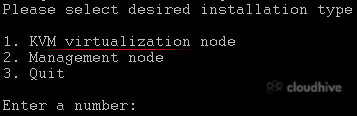
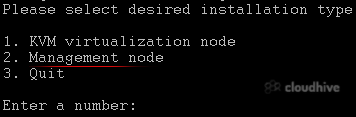
SolusVM is a popular control panel for managing VPS hosting. In SolusVM 1, the master/management node controls virtual server nodes and manages VPS instances. Note: This tutorial is only for SolusVM 1. It does not support latest versions of Linux. In future SolusVM will deprecate v1. So we recomm...
 cPanel
How to Install Plesk on Linux
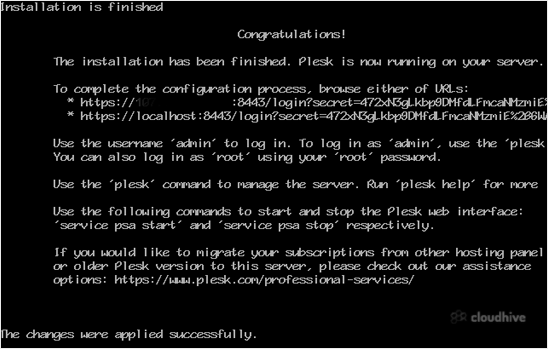
Plesk is a popular website control panel. It makes managing your website easy. Although it is easy to install, going through our tutorial will be very helpful and most likely save you time.Before proceeding with the installation, we recommend using the correct hostname.What are the requirements?-...
 cPanel
How to Access cPanel Web Disk
You can use the cPanel's login details to access your Web Disk. It supports various operating systems such as Mobile OS and others.1. Log in to your cPanel account. 2. In the Files section, click on Web Disk.3. Under Main Web Disk Account, click on Configure Client Access.4. Select your operating...
cPanel
How to Create an Additional Web Disk Account in cPanel
You can use the cPanel's login details to access your Web Disk. You can also create an additional account for accessing a specific directory on your account.1. Log in to your cPanel account. 2. In the Files section, click on Web Disk. 3. Under Create an Additional Web Disk Account, enter the deta...
 cPanel
How to Edit or Remove an MX Record in cPanel
You can edit or remove an MX Record in cPanel using the cPanel's DNS Zone Editor. It allows you to manage, remove, or modify DNS records.1. Log in to your cPanel account. 2. In the Domains section, click on Zone Editor. 3. Under Domains, you can see many options below Actions. 4. Click on Manage....