
You can use cPanel's built-in file manager instead of an FTP program to manage your website files.
1. Log in to your cPanel account.
2. In the Files section, click on File Manager.
3. In the cPanel File Manager, navigate to the directory where you want to upload your files. The public HTML directory is the most common location for website files. To access it, click on public_html in the list of directories on the left side.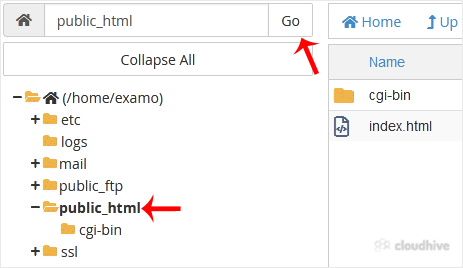
4. Now click on Upload.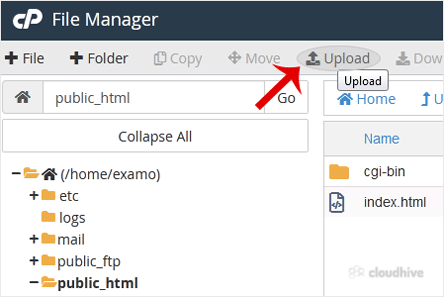
5. Click on Select File and choose the file you want to upload from your computer. Click open and the upload process will begin. You can also drag and drop files from your computer in the upload box.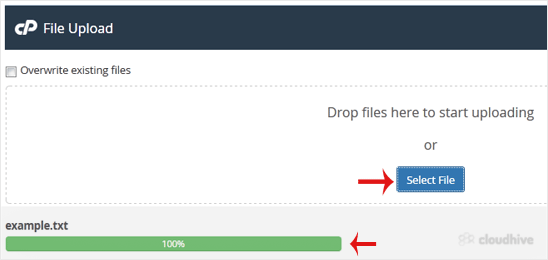
We hope this guide is helpful. If you have any questions or need further assistance, feel free to explore our other tutorials or contact us.