

How to Update the DNS Nameservers at Name.com

SShaltai-Boltai April 26, 2026 2 min read 0 views
How to Update the DNS Nameservers at Name.com

You can find our nameservers in your hosting welcome email. You need to update your domain nameservers to our nameservers.


If your domain is registered on Name.com, you should follow this tutorial to update your domain's Nameservers.


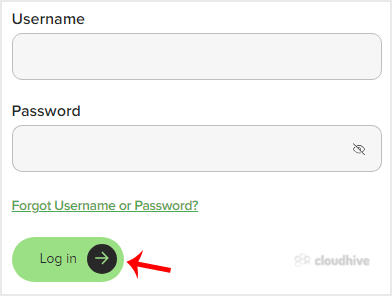
1. Open the Name.com website and click on Log in.

2. Enter the username and password of your account and then click on Log in.

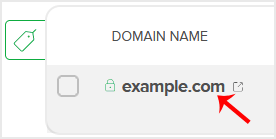
3. After a successful login, click on My Domains, and you will see all of your active domain names under the Domain Name tab.

4. Click on the domain you want to update the nameservers for.


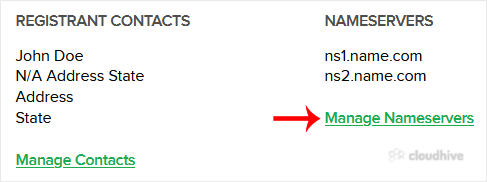
5. Scroll down to the Nameservers section and click Manage Nameservers.

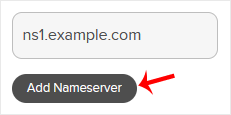
6. Navigate to the Add Nameserver section and enter our nameserver in the text field (for example, ns1.example.com). Then click on Add Nameserver. Repeat this to add our second nameserver.
7. Click Save Changes.


Note: You need to check your Hosting Welcome E-mail for your current nameservers. In case you have lost it, contact us. We will be glad to assist you. It may take anywhere from 12 to 24 hours for the changes to take effect worldwide.

//RELATED ARTICLESALL ARTICLES →
April 26, 2026 2 min read 0

How to Forcefully or Gracefully Shut Down the VPS in SolusVM 2

You can shut down the VPS in two ways - forcefully or gracefully in SolusVM 2. How to Gracefully shut down the VPS in SolusVM 2? 1. Log in to your SolusVM 2 Control Panel. 2. Under Projects, click on the project that contains your VPS. 3. Click on the appropriate VPS. 4. Click on Stop.5. Click Ye...

SShaltai-Boltai Read more
April 26, 2026 2 min read 0

How to Reboot/Restart VPS in SolusVM 2

You can restart VPS via the command line or SolusVM 2. How to Reboot/Restart a VPS via SolusVM 2? 1. Log in to your SolusVM 2 Control Panel. 2. Under Projects, click on the project that contains your VPS. 3. Click on the appropriate VPS. 4. Click on Restart located at the top right side.5. Choose...

SShaltai-Boltai Read more
April 26, 2026 2 min read 0

How to Check if Your VPS is Online or Offline in SolusVM 2

You can check the status of your SolusVM Virtual Private Server (VPS) to see if it is online or offline. You can find out VPS status from the client area or from the SolusVM 2 Control Panel.1. Log in to your SolusVM 2 Control Panel. 2. Under Projects, click on the project that contains your VPS. ...

SShaltai-Boltai Read more
April 26, 2026 2 min read 0

How to Log in to SolusVM 2 Control Panel

You can find the Control Panel URL, username (email address), and password in your VPS welcome email. SolusVM 2 login details example: Control Panel URL: https://server-hostname/login or use the IP address.Username: Your email address.Password: Your password. How to log in to SolusVM 2 Control Pa...

SShaltai-Boltai Read more