
You can find our nameservers in your hosting welcome email. You need to update your domain nameservers to our nameservers.
If your domain is registered at GoDaddy, you should follow this tutorial to update your domain's Nameservers.
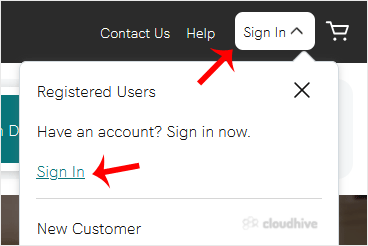
1. Open Godaddy website and click on Sign In. Under "Registered Users", click again on Sign-in. You will be redirected to the login page.
2. Enter the Username or Customer ID and the password of your GoDaddy account. Then click on Sign In.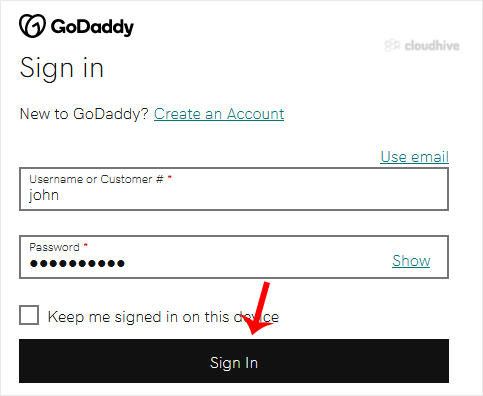
3. Under the Domains section. Click on DNS next to the domain you wish to manage.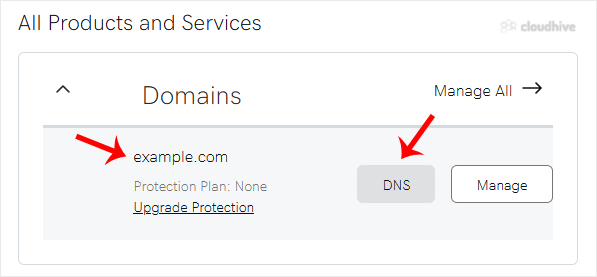
4. Click on the Nameservers tab and then on Change Nameservers.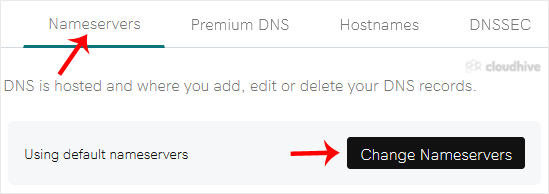
5. Choose the "I'll use my own nameservers" option, and enter your nameservers in the designated fields.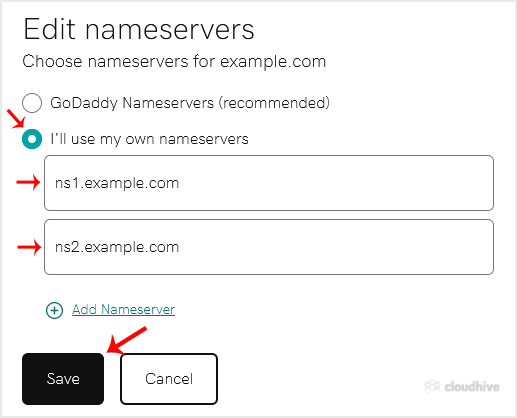
6. Click on Save.
Note: It may take anywhere from 12 to 24 hours for the changes to take effect worldwide.