
Thunderbird is a friendly email client software for managing your email. You can set up a cPanel email account with Thunderbird and receive/send the email.
1. Open Thunderbird.

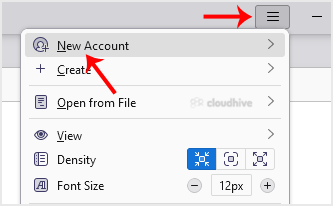
2. Click on the menu icon located on the right side of the screen and choose New Account. The drop-down menu will populate with new options.
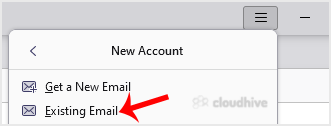
3. Click on Existing Email.
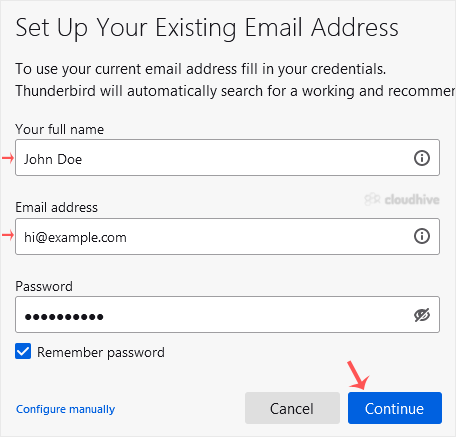
4. In the Mail Setup Account, fill out your name, full email address, and your email account password. Proceed with Continue.
5. It may take a few minutes to configure your email account. After that, click on Done.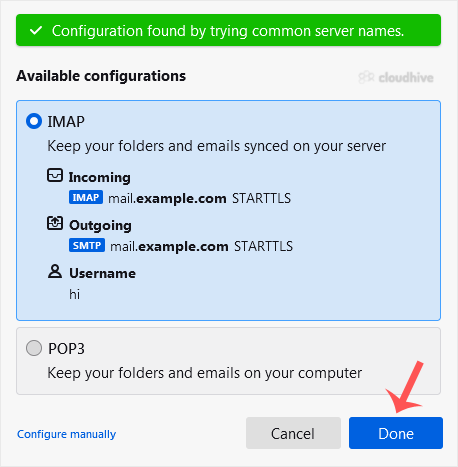
6. If it shows an SSL Security Exception, click on Confirm Security Exception and the warning will disappear.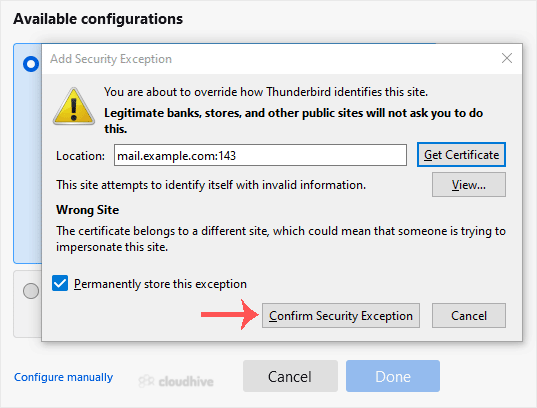
Congratulations, your email is set up successfully. You can now manage your email through Thunderbird.
cPanel