
How to Set Up a cPanel Email Account in Android

SShaltai-Boltai April 26, 2026 2 min read 0 views
How to Set Up a cPanel Email Account in Android

You can add a cPanel email account to your Android's built-in email application. You don't need to use any external apps from Google Play.


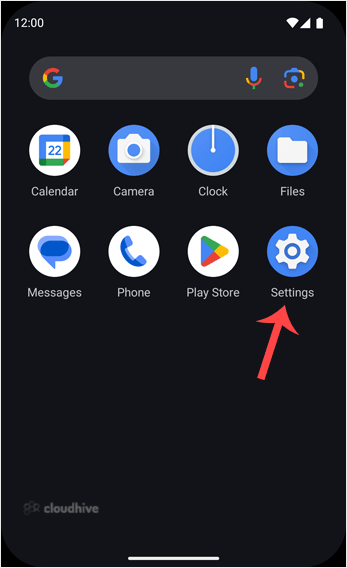
1. Open your Android mobile and swipe up from the bottom of the screen to the top. Find the Settings icon and open it.


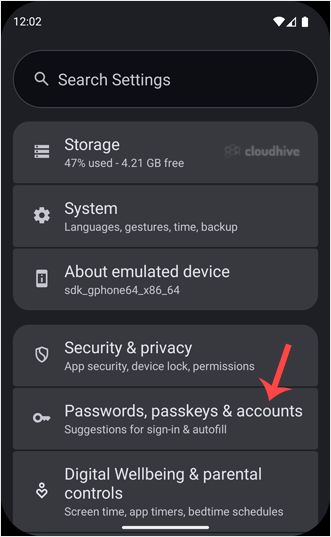
2. Scroll down to the Passwords, passkeys & accounts option and tap on it.

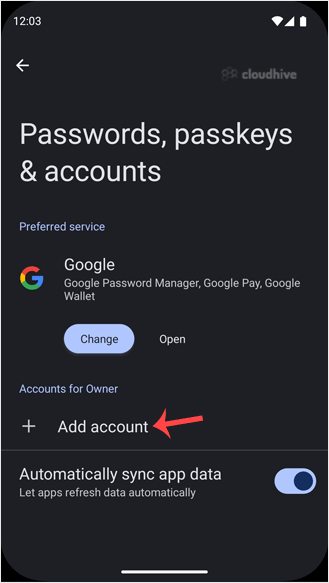
3. Tap on + Add account.
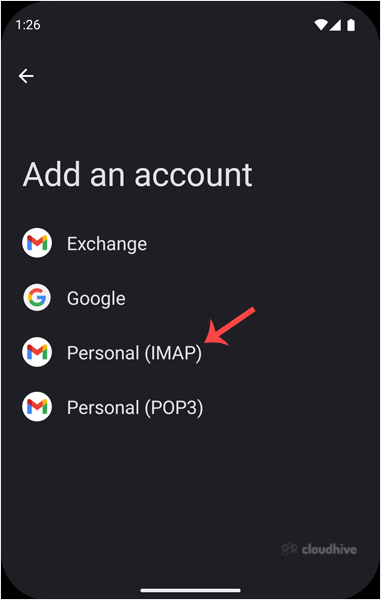
4. Now, choose the Personal IMAP option.


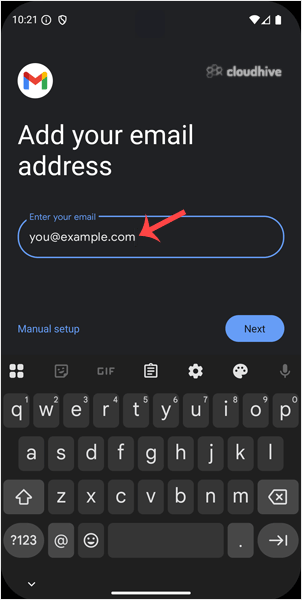
5. Please enter your full email address, such as you@example.com. Then tap Next and enter your password. Confirm by tapping Next again.


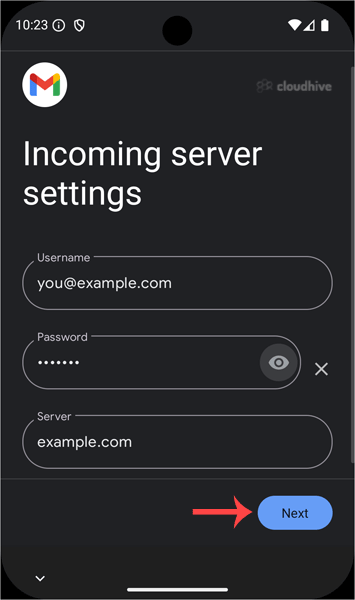
6. Look at Incoming Server Settings and Outgoing Mail Server Settings. If everything looks OK, then tap Next.


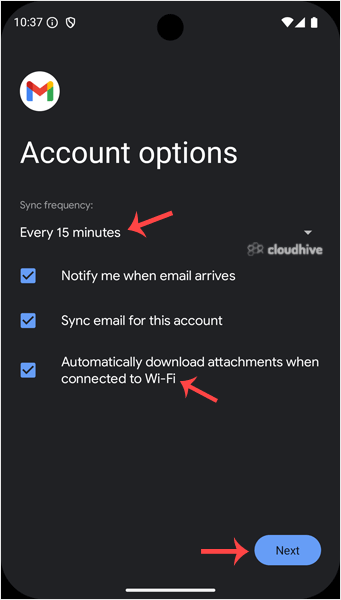
7. You can select Email Sync Frequency and other options under the accounts option. Choose as per your needs and press Next.

8. In the Your Name input box, enter your name and press Next.

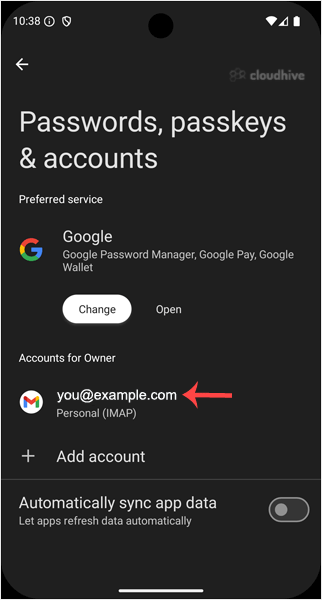
Congratulations! You will now receive a notification whenever a new email arrives. To view your email accounts, go to Settings > Accounts and Backup > Manage accounts on your Android device.

You can also access it directly from the built-in Gmail application.


Check our other Android tutorials on how to manually read/check emails or compose and send a new message.

//RELATED ARTICLESALL ARTICLES →
April 26, 2026 2 min read 0

How to Forcefully or Gracefully Shut Down the VPS in SolusVM 2

You can shut down the VPS in two ways - forcefully or gracefully in SolusVM 2. How to Gracefully shut down the VPS in SolusVM 2? 1. Log in to your SolusVM 2 Control Panel. 2. Under Projects, click on the project that contains your VPS. 3. Click on the appropriate VPS. 4. Click on Stop.5. Click Ye...

SShaltai-Boltai Read more
April 26, 2026 2 min read 0

How to Reboot/Restart VPS in SolusVM 2

You can restart VPS via the command line or SolusVM 2. How to Reboot/Restart a VPS via SolusVM 2? 1. Log in to your SolusVM 2 Control Panel. 2. Under Projects, click on the project that contains your VPS. 3. Click on the appropriate VPS. 4. Click on Restart located at the top right side.5. Choose...

SShaltai-Boltai Read more
April 26, 2026 2 min read 0

How to Check if Your VPS is Online or Offline in SolusVM 2

You can check the status of your SolusVM Virtual Private Server (VPS) to see if it is online or offline. You can find out VPS status from the client area or from the SolusVM 2 Control Panel.1. Log in to your SolusVM 2 Control Panel. 2. Under Projects, click on the project that contains your VPS. ...

SShaltai-Boltai Read more
April 26, 2026 2 min read 0

How to Log in to SolusVM 2 Control Panel

You can find the Control Panel URL, username (email address), and password in your VPS welcome email. SolusVM 2 login details example: Control Panel URL: https://server-hostname/login or use the IP address.Username: Your email address.Password: Your password. How to log in to SolusVM 2 Control Pa...

SShaltai-Boltai Read more