

How to Set the PHP Version per Directory in cPanel

SShaltai-Boltai April 26, 2026 2 min read 0 views
How to Set the PHP Version per Directory in cPanel

Do you want to use different PHP versions per directory? You can do this using cPanel and the dot htaccess file.


1. Log in to your cPanel account.


2. In the Software section, click on MultiPHP Manager.


3. The first thing we need to do is to get the code generated by cPanel.

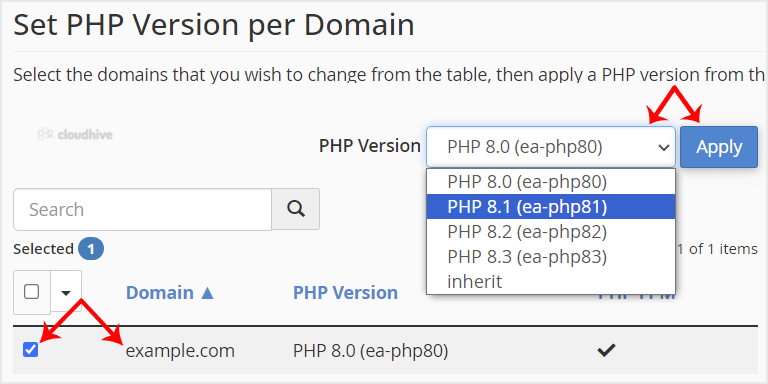
4. Scroll down to the bottom of the page. Select your domain from the left side of the screen. You can view the PHP Version from the drop-down menu on the right. Please, select the appropriate PHP version from it and click on Apply.

5. First, open the /public_html/.htaccess file in the cPanel File Manager, and you will find the code generated by cPanel.



6. After you copy the code, should you wish to set the PHP to version 8.1 in the directory forums, create a .htaccess file in the directory /forums/ and paste the code generated in the previous step.


7. Congratulations, now your directory forums is using PHP 8.1. Should you wish to set any other directory to use the same version of PHP as well, you would only need to copy the code from the .htaccess file and paste it into that directory.


Now, reset your PHP version from your primary domain. Should you wish to use a different PHP version on any directory, follow steps five and six, generate the code, copy that code from /public_html/.htaccess and paste it into the directory where you want to set the selected PHP version.

//RELATED ARTICLESALL ARTICLES →
April 26, 2026 2 min read 0

How to Forcefully or Gracefully Shut Down the VPS in SolusVM 2

You can shut down the VPS in two ways - forcefully or gracefully in SolusVM 2. How to Gracefully shut down the VPS in SolusVM 2? 1. Log in to your SolusVM 2 Control Panel. 2. Under Projects, click on the project that contains your VPS. 3. Click on the appropriate VPS. 4. Click on Stop.5. Click Ye...

SShaltai-Boltai Read more
April 26, 2026 2 min read 0

How to Reboot/Restart VPS in SolusVM 2

You can restart VPS via the command line or SolusVM 2. How to Reboot/Restart a VPS via SolusVM 2? 1. Log in to your SolusVM 2 Control Panel. 2. Under Projects, click on the project that contains your VPS. 3. Click on the appropriate VPS. 4. Click on Restart located at the top right side.5. Choose...

SShaltai-Boltai Read more
April 26, 2026 2 min read 0

How to Check if Your VPS is Online or Offline in SolusVM 2

You can check the status of your SolusVM Virtual Private Server (VPS) to see if it is online or offline. You can find out VPS status from the client area or from the SolusVM 2 Control Panel.1. Log in to your SolusVM 2 Control Panel. 2. Under Projects, click on the project that contains your VPS. ...

SShaltai-Boltai Read more
April 26, 2026 2 min read 0

How to Log in to SolusVM 2 Control Panel

You can find the Control Panel URL, username (email address), and password in your VPS welcome email. SolusVM 2 login details example: Control Panel URL: https://server-hostname/login or use the IP address.Username: Your email address.Password: Your password. How to log in to SolusVM 2 Control Pa...

SShaltai-Boltai Read more