
In this tutorial, you will learn how to redirect your website using DirectAdmin. This can be helpful if you want to send visitors from one domain or page to another.
1. Log in to your DirectAdmin Account.
2. In the Account Manager section, click on Site Redirection. Alternatively, type Site Redirection in the search bar, and the option will appear. Click on it.
3. Click on Create New Redirect. You will find it on the top right.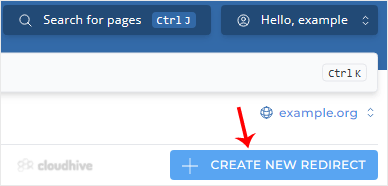
4. Enter the following details:
- Local URL Path: If you want to redirect your website page, enter the page name or leave it as it is.
- Redirect Type: Select the redirect type from the drop-down menu.
- Destination URL: Enter the URL where you want to redirect your website or page.
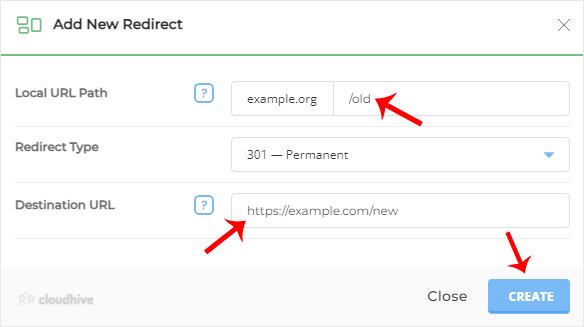
5. Click on Create.
A redirect will be created.