
A tutorial on how to access the Plesk Control Panel.
After you place an order and make a successful payment, you will receive a welcome email containing login details.
Permanent URL:
https://$hostname.com:8443 (SSL Protected).
http://$hostname.com:8880 (Non-SSL - Insecure).
Login using the IP Address:
https://$ip-here:8443 (SSL Protected Need Exception).
After your domain is propagated, you can access it from your domain as follows: https://example.com:8443.
Please, check your Welcome email in case the URL does not open on port 8443.
How to log in to Plesk?
1. Open your Plesk Login URL.
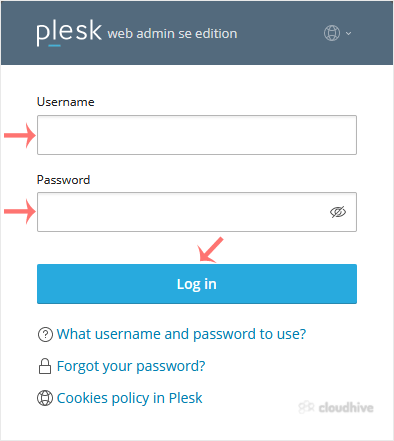
2. Enter your credentials and click on Log in. If your login details are correct, you will have successfully logged in to your Plesk account.
Note: If you recently modified your domain's DNS, the domain propagation can take up to 24 hours.