
How to Install Dotclear via Softaculous in cPanel

SShaltai-Boltai April 26, 2026 2 min read 0 views
How to Install Dotclear via Softaculous in cPanel

Softaculous helps you install web applications very easy. Please, follow the steps below to install Dotclear.

1. Log in to your cPanel account.


2.
In the Software section, click on Softaculous Apps Installer.


3. cPanel will redirect you to the Softaculous interface.

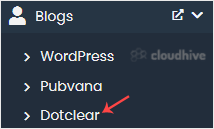
4. On the left side, type Dotclear in the search box, then click the Dotclear link that appears.

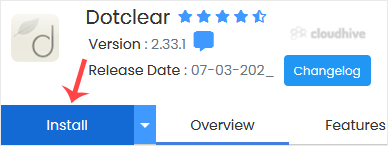
5. Click on Install.


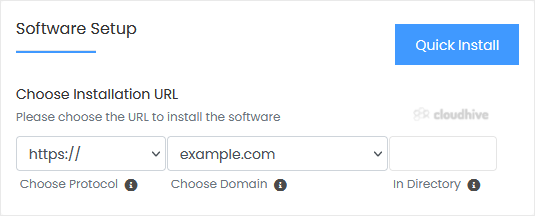
6. Fill in the necessary fields under the Software Setup section:

  • Choose Installation URL: Choose the appropriate protocol/domain. Inside the "In Directory" field, should you want to install this in a directory, i.e., example.com/directory, enter the directory name. Otherwise, please, leave it blank to install in your main domain, i.e., example.com.


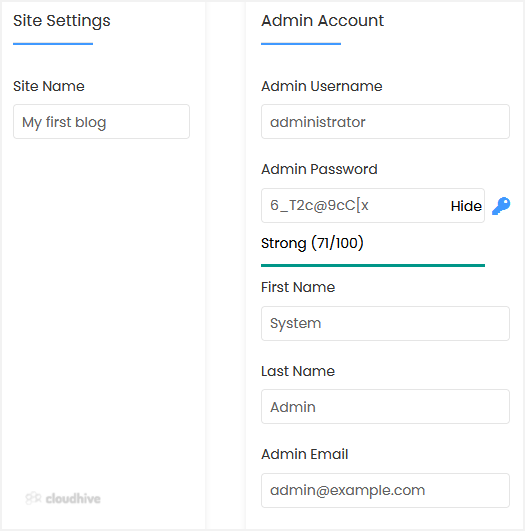
7. Under the Site Settings section, enter the following information:

  • Site Name: Enter the name of your website, such as my first website.


8. Under the Admin Account section, enter the following information:

  • Admin Username: Your new Dotclear username (for security reasons, do not use the administrator or the admin username).
  • Admin Password: Use a strong password.
  • First Name: Your first name.
  • Last Name: Your last name.
  • Admin Email: Your e-mail address.

Note: Copy the admin username and password to Notepad. You will need those to access the admin area of your Dotclear blog later.


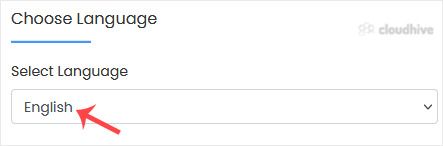
9. Choose Language: You can choose the language of your Dotclear blog. The default language of Dotclear is English.


10. Advanced Options: Leave this unless you want to change the database name or take an automated backup. Please, note that creating frequent backups may take a lot of disk space.


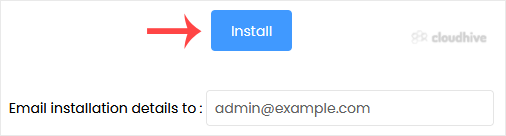
Finally, scroll down to the end of the page and click on Install.
//RELATED ARTICLESALL ARTICLES →
April 26, 2026 2 min read 0

How to Forcefully or Gracefully Shut Down the VPS in SolusVM 2

You can shut down the VPS in two ways - forcefully or gracefully in SolusVM 2. How to Gracefully shut down the VPS in SolusVM 2? 1. Log in to your SolusVM 2 Control Panel. 2. Under Projects, click on the project that contains your VPS. 3. Click on the appropriate VPS. 4. Click on Stop.5. Click Ye...

SShaltai-Boltai Read more
April 26, 2026 2 min read 0

How to Reboot/Restart VPS in SolusVM 2

You can restart VPS via the command line or SolusVM 2. How to Reboot/Restart a VPS via SolusVM 2? 1. Log in to your SolusVM 2 Control Panel. 2. Under Projects, click on the project that contains your VPS. 3. Click on the appropriate VPS. 4. Click on Restart located at the top right side.5. Choose...

SShaltai-Boltai Read more
April 26, 2026 2 min read 0

How to Check if Your VPS is Online or Offline in SolusVM 2

You can check the status of your SolusVM Virtual Private Server (VPS) to see if it is online or offline. You can find out VPS status from the client area or from the SolusVM 2 Control Panel.1. Log in to your SolusVM 2 Control Panel. 2. Under Projects, click on the project that contains your VPS. ...

SShaltai-Boltai Read more
April 26, 2026 2 min read 0

How to Log in to SolusVM 2 Control Panel

You can find the Control Panel URL, username (email address), and password in your VPS welcome email. SolusVM 2 login details example: Control Panel URL: https://server-hostname/login or use the IP address.Username: Your email address.Password: Your password. How to log in to SolusVM 2 Control Pa...

SShaltai-Boltai Read more