
Backing up is important, and you should do it regularly. Follow this tutorial to make a full backup of your website with Plesk.
How to Generate a Backup of your Plesk Account?
1. Log in to your Plesk account.
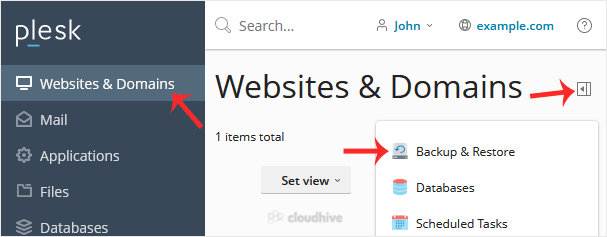
2. Go to Websites & Domains > Click on the Pull icon > Choose Backup & Restore.
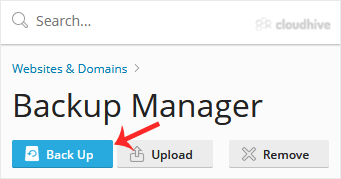
3. Under Backup Manager, click Back Up.
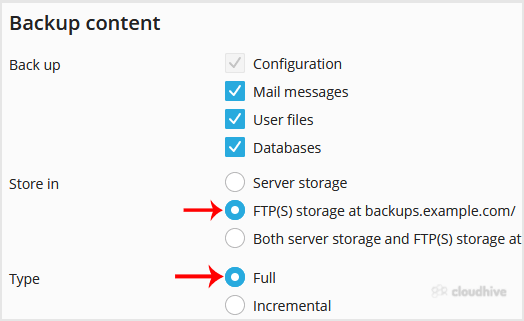
4. Choose Full as the backup type and FTP(s) in Store in option.
5. If you wish to receive a notification on backup completion, you can checkmark the "When a backup task is completed, send a notification email to" option.

6. Confirm with OK. The backup will start generating in the background. At this point, you can navigate away.
How to Download a Backup of Your Plesk Account?
1. Go to Websites & Domains > Click on the Pull icon > Choose Backup & Restore.
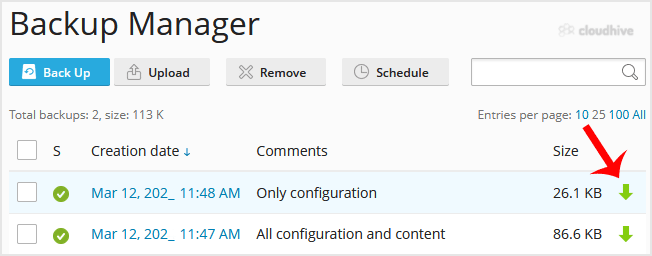
2. From the backup list, click the download icon.
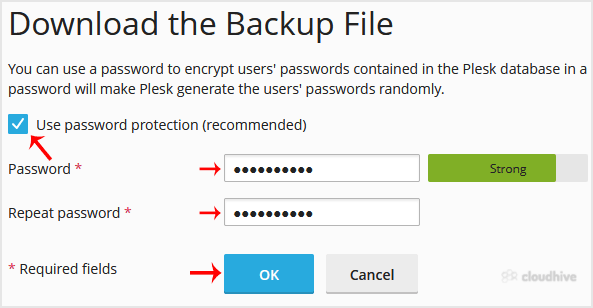
3. If you want to password protect the backup file, checkmark Use password protection and enter a password. Then confirm with OK.
4. A download will prompt you. Please, save the backup to your computer.
You have successfully generated a full backup in Plesk. Make sure to store your backup safely so you can restore your data whenever needed.