
Obtaining a certificate from a trusted SSL provider requires a Certificate Signing Request (CSR). CSR is also needed for generating self-signed SSL certificates. Follow this tutorial to generate a CSR.
1. Log in to your cPanel account.
2. In the Security section, click on SSL/TLS.

3. Under Certificate Signing Request, click on Generate, View or Delete CSR Link.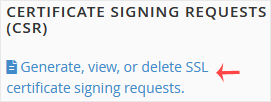
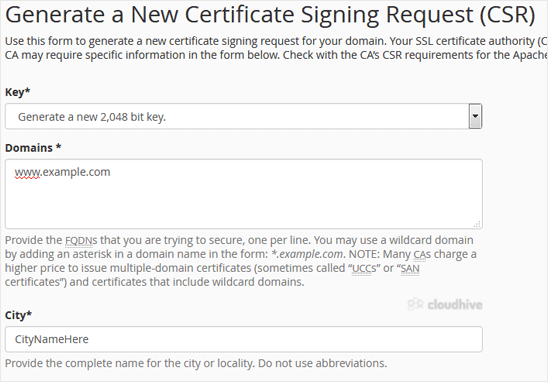
4. Scroll down and enter the following details:
- Domains: Enter your domain name, such as www.example.com (domains with www cover both non-www and www domains)
- City: Your city name.
- State: Your state name.
- Country: Choose your country name from the drop-down menu.
- Company: Your Company name.
- Company Division: Name of your company division.
- Email: Enter your email address.
- Passphrase: Enter a passphrase (maximum 20 characters) and do not use special characters.
- Description: You can leave it blank.
5. Finally, click on Generate. Copy the generated CSR code and save it to your computer. You can use your CSR while purchasing an SSL or reissuing an SSL in the future.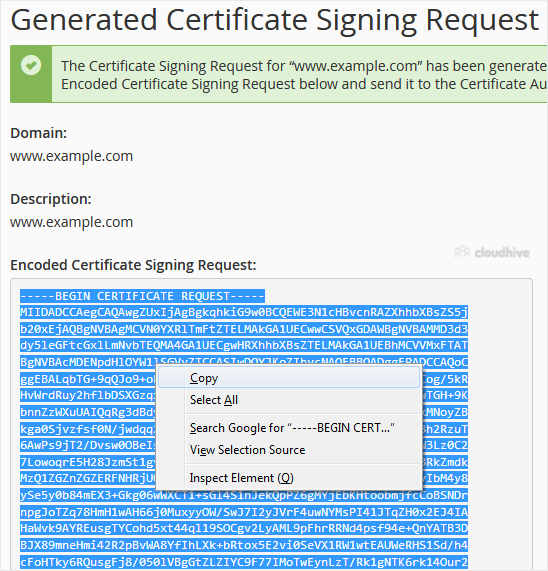
You have generated a Certificate Signing Request in cPanel, and you can now use it to get an SSL certificate for your domain.