
In this tutorial, you will learn how to exclude specific files or folders from a backup in Plesk. This helps reduce the backup size and skip files you do not need to include.
1. Log in to your Plesk account.
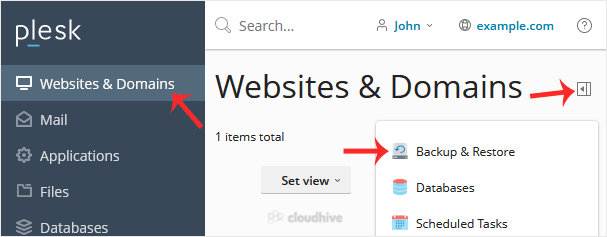
2. Go to Websites & Domains > Click on the Pull icon >> Choose Backup & Restore.
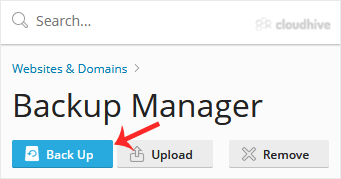
3. Under Backup Manager, click on Back Up.
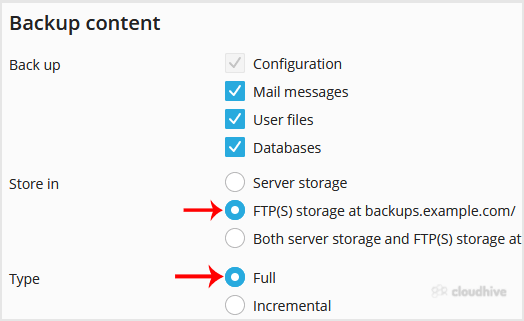
4. Choose the backup type.
5. Checkmark Exclude specific files from the backup.
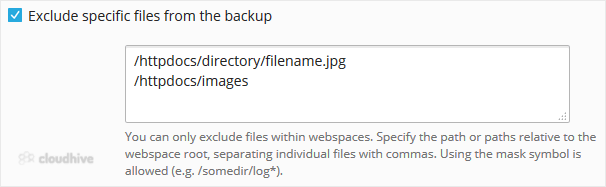
Enter the path of the file you want to exclude, such as:
/httpdocs/directory/filename.jpg
To exclude a whole directory, enter:
/httpdocs/images
To exclude only specific extensions such as PNG, enter:
/httpdocs/images/*.png
6. Confirm with OK. The backup will start generating in the background. At this point, you can navigate away from the page.
You have successfully excluded selected files or folders from the Plesk backup.