
In this tutorial, you will learn how to encrypt the database password in a Plesk backup.
1. Log in to your Plesk account.
2. Go to Websites & Domains > Click on the Pull icon > Choose Backup & Restore.
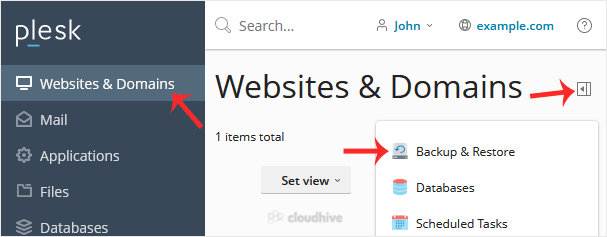
3. Click on Remote Storage Settings.

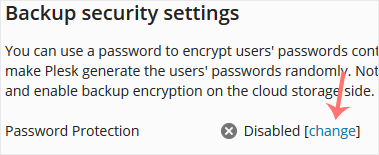
4. On the right side of Password Protection, if it displays Disabled, click on change.
5. Checkmark Use password protection and enter a password. Then confirm with Apply.
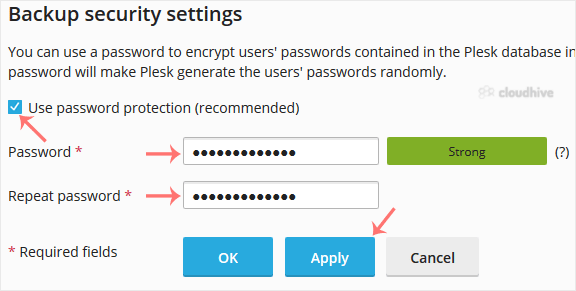
Ensure that you store your password in a safe place. You will need it when restoring a backup. If you have forgotten your password or do not enter one, Plesk will restore your backup with a random database password.