

How to Enable the Two-Factor Authentication on Your cPanel Account

SShaltai-Boltai April 26, 2026 2 min read 0 views
How to Enable the Two-Factor Authentication on Your cPanel Account

Security is important for our data safety. We recommend you to enable the Two-Factor Authentication (2FA) on your cPanel account in order to prevent hackers from accessing your cPanel account even if they have somehow obtained your account details.


What are the Requirements?

You would need a smartphone with a supported time-based one-time password app. Mobile phone OS such as Android, Windows and iOS have an app for 2FA.


How to Enable the Two-Factor Authentication on Your cPanel Account?

1. Log in to your cPanel account.


2. In the Security section, click on Two-Factor Authentication.


3. Click on Setup Two-Factor Authentication. Under Step 1, scan the QR code using your Google Authenticator or 2FA Authenticator application. If your APP doesn't have a QR code reader, you can manually enter the account name and key number.
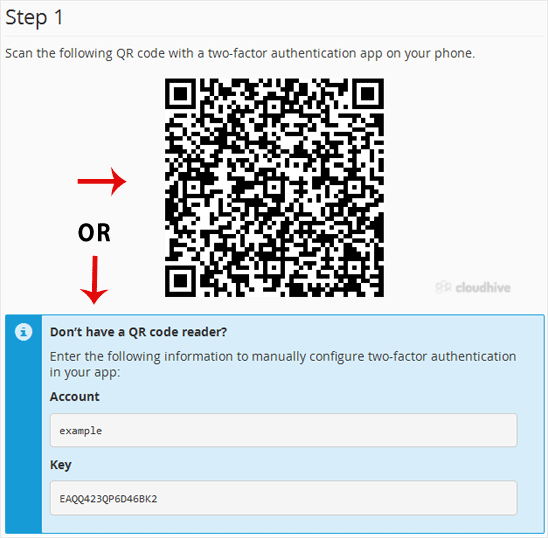

4. Under the Security Code, enter your Two-Factor Authentication code and click on Configure Two-Factor Authentication.
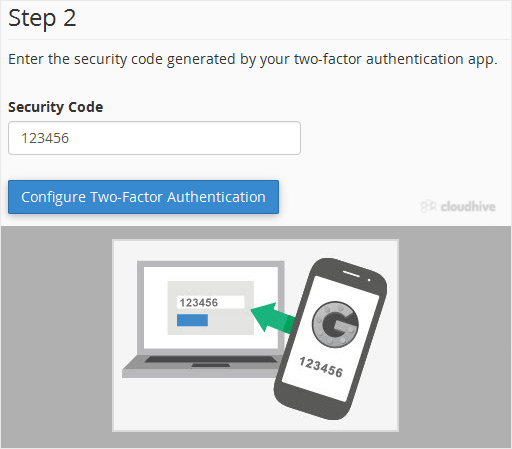


It should display a message such as Success: Two-factor authentication is now configured on your account.

//RELATED ARTICLESALL ARTICLES →
April 26, 2026 2 min read 0

How to Forcefully or Gracefully Shut Down the VPS in SolusVM 2

You can shut down the VPS in two ways - forcefully or gracefully in SolusVM 2. How to Gracefully shut down the VPS in SolusVM 2? 1. Log in to your SolusVM 2 Control Panel. 2. Under Projects, click on the project that contains your VPS. 3. Click on the appropriate VPS. 4. Click on Stop.5. Click Ye...

SShaltai-Boltai Read more
April 26, 2026 2 min read 0

How to Reboot/Restart VPS in SolusVM 2

You can restart VPS via the command line or SolusVM 2. How to Reboot/Restart a VPS via SolusVM 2? 1. Log in to your SolusVM 2 Control Panel. 2. Under Projects, click on the project that contains your VPS. 3. Click on the appropriate VPS. 4. Click on Restart located at the top right side.5. Choose...

SShaltai-Boltai Read more
April 26, 2026 2 min read 0

How to Check if Your VPS is Online or Offline in SolusVM 2

You can check the status of your SolusVM Virtual Private Server (VPS) to see if it is online or offline. You can find out VPS status from the client area or from the SolusVM 2 Control Panel.1. Log in to your SolusVM 2 Control Panel. 2. Under Projects, click on the project that contains your VPS. ...

SShaltai-Boltai Read more
April 26, 2026 2 min read 0

How to Log in to SolusVM 2 Control Panel

You can find the Control Panel URL, username (email address), and password in your VPS welcome email. SolusVM 2 login details example: Control Panel URL: https://server-hostname/login or use the IP address.Username: Your email address.Password: Your password. How to log in to SolusVM 2 Control Pa...

SShaltai-Boltai Read more