
How to Enable or Disable PHP Extensions Using the CloudLinux Selector in cPanel cPanel

How to Enable or Disable PHP Extensions Using the CloudLinux Selector in cPanel

You can use CloudLinux Selector to enable or disable available PHP extensions in cPanel.

1. Log in to your cPanel account.

2. In the Software section, click on Select PHP Version.

3. Click on the Extensions menu.
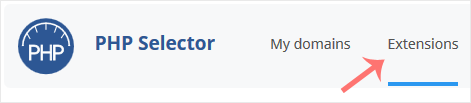
Note: If the Extensions page shows an error related to the native PHP version, change it to a non-native version first.

4. To enable the extension, checkmark the option you want to enable. Uncheck it if you want to disable it.
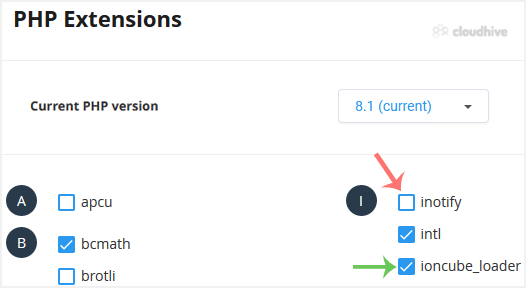
The message will show if the module is enabled or disabled.

Share: Twitter LinkedIn WhatsApp

Expert Knowledge

Articles written by certified WHMCS developers and hosting professionals.

Regularly Updated

Fresh content published regularly to keep you up to date with the latest.

Community Focused

Content built around real questions and challenges from our community.

Actionable Tips

Every article includes step-by-step guides you can apply immediately.