

How to Enable or Disable Mod Security in cPanel

SShaltai-Boltai April 26, 2026 2 min read 0 views
How to Enable or Disable Mod Security in cPanel

Are you facing the issue of IP getting blocked repeatedly? If the answer is Yes, then it may have happened due to Mod Security.

What is Mod Security?

ModSecurity is a module that protects your website from various types of attacks. Mod Security protects a website from hackers, brute force attacks, cross-site request forgery(CSRF), and many other threats. Although it sometimes creates a problem, we do not recommend you to disable it but instead fix your software's vulnerability.


Disabling ModSecurity can help you determine whether ModSecurity blocks your IP or not. However, if your IP is blocked for a different reason, then contact us. We will find the exact reason behind it in order to resolve your issue so that you will not be required to disable the module.


How to Enable or Disable Mod Security in cPanel?

1. Log in to your cPanel account.


2. In the Security section, click on ModSecurity.


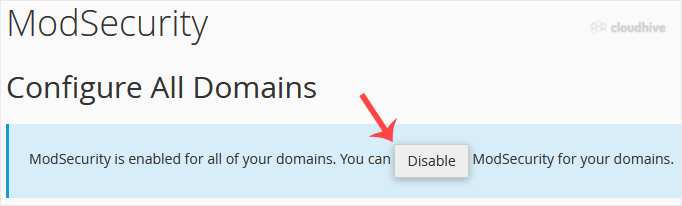
3. If ModSecurity is enabled, it shows the Disable option. Click it to disable ModSecurity on all domains. The next time you want to enable it, click on Enable to enable it on all domains.


How to disable ModSecurity only on selected domains?

You may have multiple domains, and you would want to disable or enable ModSecurity on selected domains.


1. Log in to cPanel, and from the Security section, click on ModSecurity.


2. Scroll down to the bottom of the page.


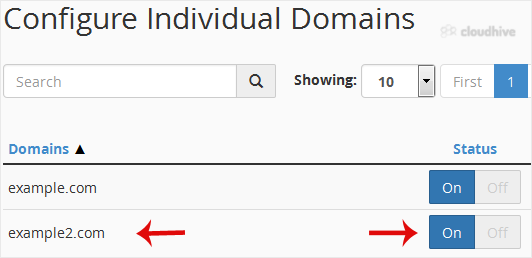
3. Under the Status option, next to the domain, click on On or Off.


Hope you found this tutorial helpful.

//RELATED ARTICLESALL ARTICLES →
April 26, 2026 2 min read 0

How to Forcefully or Gracefully Shut Down the VPS in SolusVM 2

You can shut down the VPS in two ways - forcefully or gracefully in SolusVM 2. How to Gracefully shut down the VPS in SolusVM 2? 1. Log in to your SolusVM 2 Control Panel. 2. Under Projects, click on the project that contains your VPS. 3. Click on the appropriate VPS. 4. Click on Stop.5. Click Ye...

SShaltai-Boltai Read more
April 26, 2026 2 min read 0

How to Reboot/Restart VPS in SolusVM 2

You can restart VPS via the command line or SolusVM 2. How to Reboot/Restart a VPS via SolusVM 2? 1. Log in to your SolusVM 2 Control Panel. 2. Under Projects, click on the project that contains your VPS. 3. Click on the appropriate VPS. 4. Click on Restart located at the top right side.5. Choose...

SShaltai-Boltai Read more
April 26, 2026 2 min read 0

How to Check if Your VPS is Online or Offline in SolusVM 2

You can check the status of your SolusVM Virtual Private Server (VPS) to see if it is online or offline. You can find out VPS status from the client area or from the SolusVM 2 Control Panel.1. Log in to your SolusVM 2 Control Panel. 2. Under Projects, click on the project that contains your VPS. ...

SShaltai-Boltai Read more
April 26, 2026 2 min read 0

How to Log in to SolusVM 2 Control Panel

You can find the Control Panel URL, username (email address), and password in your VPS welcome email. SolusVM 2 login details example: Control Panel URL: https://server-hostname/login or use the IP address.Username: Your email address.Password: Your password. How to log in to SolusVM 2 Control Pa...

SShaltai-Boltai Read more