
You can download a backup of FTP data, email, or database-only backup from DirectAdmin's control panel.
How to generate database-only, FTP, or email backup?
1. Log in to your DirectAdmin account.
2. In the Advanced Features section, click on Create/Restore Backups. Alternatively, type Restore in the search bar, and the option will appear. Click on it.
3. Under the Site Backup, should you wish to generate an email-only backup, uncheck all other options and check-mark only the options displayed under email. For FTP only backup, check-mark only the option which displays under FTP. You can do the same for the Database-only backup.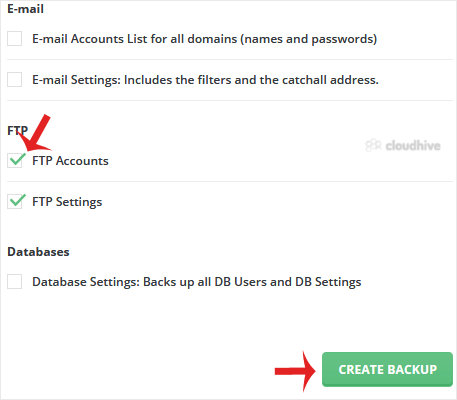
4. Scroll down to the end of the page and click on Create Backup.
5. It will display a success message such as Backup creation added to the queue. Once the backup is generated, it shows a message in DirectAdmin Panel >> Support & Help Section >> Support Center >> Messages.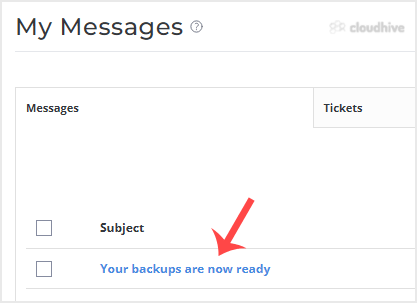
How to download generated backup of your account?
1. Log in to your DirectAdmin Account.
2. In the System Info & Files section, click on File Manager. Alternatively, type File Manager in the search bar, and the option will appear. Click on it.
3. Open the backups directory.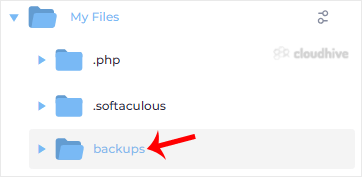
4. Right-click on your newly-generated backup file, and click on Download in the Context Menu. The file will be downloaded to your computer.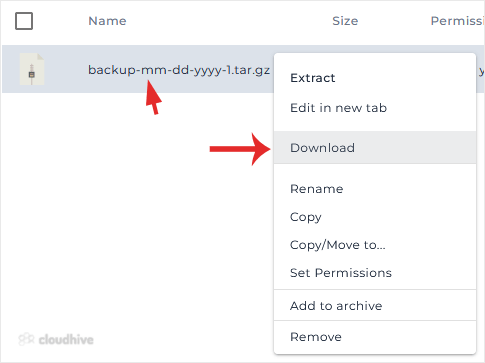
Congratulations. You have successfully generated and downloaded a backup of your selected data.