
How to Delete a Database in DirectAdmin cPanel

How to Delete a Database in DirectAdmin

You can remove your database from the DirectAdmin control panel. However, we recommend that you create a backup of it before removing it.


1. Log in to your DirectAdmin Account.


2. In the Account Manager section, click on Databases. Alternatively, type Databases in the search bar, and the option will appear. Click on it.

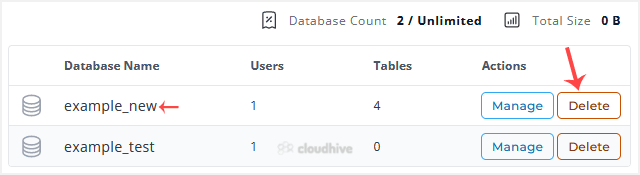
3. From the list of databases, click Delete next to the database you want to remove.

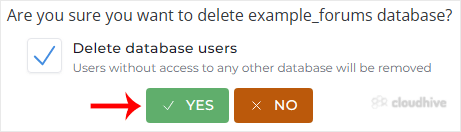
4. Click Yes to confirm deletion.

The selected database should have been deleted.

Share: Twitter LinkedIn WhatsApp

Expert Knowledge

Articles written by certified WHMCS developers and hosting professionals.

Regularly Updated

Fresh content published regularly to keep you up to date with the latest.

Community Focused

Content built around real questions and challenges from our community.

Actionable Tips

Every article includes step-by-step guides you can apply immediately.