

How to Create an FTP Account in cPanel

SShaltai-Boltai April 26, 2026 2 min read 0 views
How to Create an FTP Account in cPanel

You can access the FTP account using the cPanel login details, which gives you full access to the home directory. However, if you want to create an FTP user account for a specific directory, you can create a separate FTP account.


1. Log in to your cPanel account.


2. In the Files section, click on FTP Accounts.


3. Under Add FTP Account, fill in the following details:

  • Log in: Enter an FTP Username such as new-user (without space).
  • Password: Enter your new password or use a password generator.
  • Directory: For granting access to the entire directory of /public_html, enter public_html or change the directory path to a sub-directory such as public_html/new-user. An FTP user doesn't have access outside the specified directory.
  • Quota: Specify the quota in numerical words or choose unlimited.
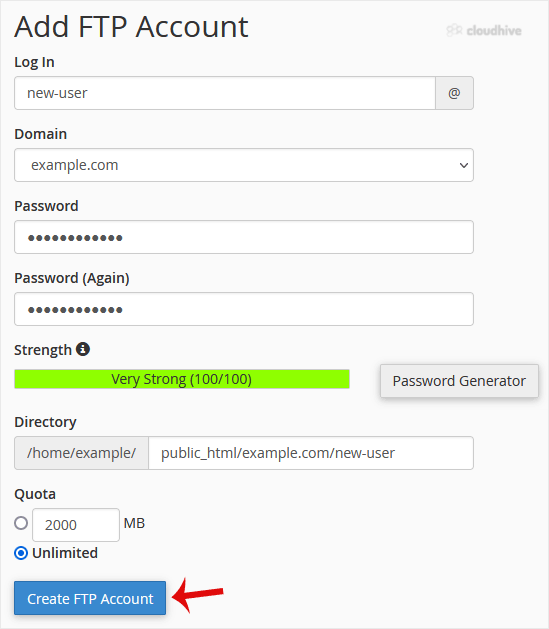


4. Click on Create FTP Account.


You can now access your new FTP account from the FTP client. The details are given below.

  • Host: The IP address or the name of your website, such as ftp.example.com (replace example.com with your website address).
  • Username: NewFTPUser@example.com.
  • FTP Port: 21 (Default port is 21).
  • FTP Password: Your FTP Password.

//RELATED ARTICLESALL ARTICLES →
April 26, 2026 2 min read 0

How to Forcefully or Gracefully Shut Down the VPS in SolusVM 2

You can shut down the VPS in two ways - forcefully or gracefully in SolusVM 2. How to Gracefully shut down the VPS in SolusVM 2? 1. Log in to your SolusVM 2 Control Panel. 2. Under Projects, click on the project that contains your VPS. 3. Click on the appropriate VPS. 4. Click on Stop.5. Click Ye...

SShaltai-Boltai Read more
April 26, 2026 2 min read 0

How to Reboot/Restart VPS in SolusVM 2

You can restart VPS via the command line or SolusVM 2. How to Reboot/Restart a VPS via SolusVM 2? 1. Log in to your SolusVM 2 Control Panel. 2. Under Projects, click on the project that contains your VPS. 3. Click on the appropriate VPS. 4. Click on Restart located at the top right side.5. Choose...

SShaltai-Boltai Read more
April 26, 2026 2 min read 0

How to Check if Your VPS is Online or Offline in SolusVM 2

You can check the status of your SolusVM Virtual Private Server (VPS) to see if it is online or offline. You can find out VPS status from the client area or from the SolusVM 2 Control Panel.1. Log in to your SolusVM 2 Control Panel. 2. Under Projects, click on the project that contains your VPS. ...

SShaltai-Boltai Read more
April 26, 2026 2 min read 0

How to Log in to SolusVM 2 Control Panel

You can find the Control Panel URL, username (email address), and password in your VPS welcome email. SolusVM 2 login details example: Control Panel URL: https://server-hostname/login or use the IP address.Username: Your email address.Password: Your password. How to log in to SolusVM 2 Control Pa...

SShaltai-Boltai Read more