
You can change your email password in DirectAdmin through the following steps:
1. Log in to your DirectAdmin Account.
2. In the E-mail Manager section, click on E-mail Accounts. Alternatively, type E-mail Accounts in the search bar, and the option will appear. Click on it.
3. In the Email Accounts list, you will see the email address with a three-dot icon on the right side.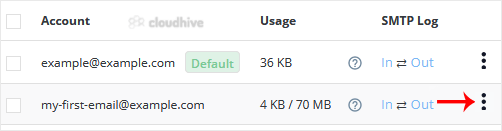
4. Click on the three-dot icon and choose Change Password/Username.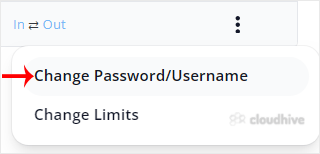
5. In the Password field, enter a new password or click on the Generate Random Password icon to generate one.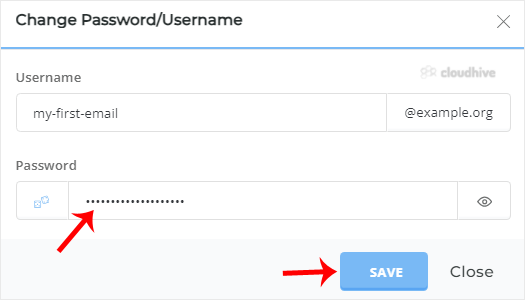
6. Click on Save.
Your password will show in the popup box. Copy it to a safe place.