
This tutorial shows you how to change the password for a database in DirectAdmin. Just follow the steps below to update it.
1. Log in to your DirectAdmin Account.
2. In the Account Manager section, click on Databases. Alternatively, type Databases in the search bar, and the option will appear. Click on it.
3. Click on Manage Users. You will find it on the right side.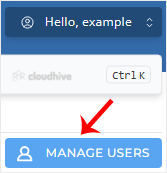
4. From the list of User Accounts, click on Manage next to it.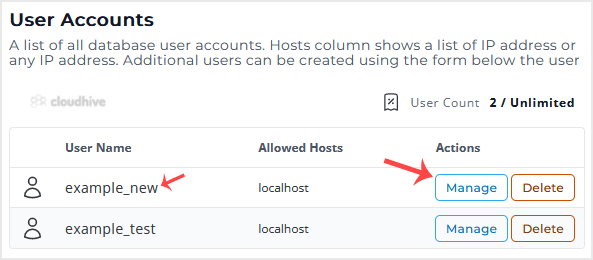
5. Under Password Management, enter your password or click on the generate password icon. Then click on Change Password.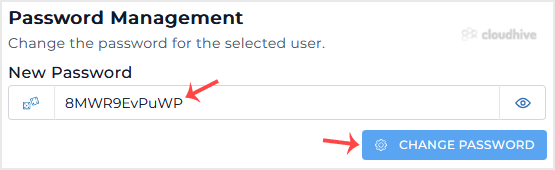
Please, copy your database password in a safe place.
The database password has been successfully changed in DirectAdmin.