
 Tutorial
How to Start/Boot Your VPS in SolusVM 1
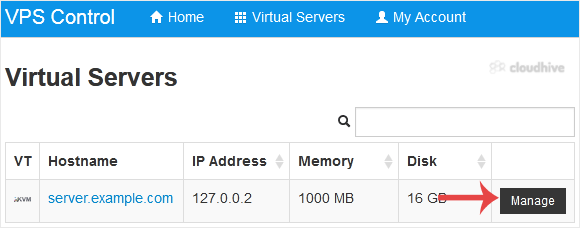
If your VPS is down/offline, you can start it using SolusVM 1.1. Log in to your SolusVM 1 Control Panel.2. If you have multiple VPSs, select the appropriate one.3. Click on Boot.4. Click Yes to confirm.It may take some time for the VPS to start.
Tutorial
How to Check VPS Specifications and Virtualization Info in SolusVM 1
You can check VPS specifications such as RAM, disk space, virtualization, IP Address, etc., from the SolusVM 1 Control Panel.1. Log in to your SolusVM 1 Control Panel. 2. If you have multiple VPSs, select the appropriate one.3. Under the VPS hostname, you can see VPS specifications like the IP ad...
 Tutorial
How to Delete Categories in WordPress
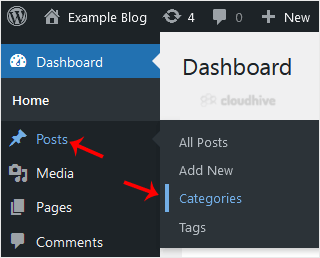
If you want to remove the WordPress category, then follow this instruction:1. Log in to the WordPress dashboard. 2. From the Dashboard menu, go to Posts and click on Categories.3. Hover your mouse over a category you want to remove and click on Delete. The confirmation option will appear. Confirm...
Tutorial
How to Delete an Uncategorized Category in WordPress
You cannot remove the Uncategorized category, but you can rename it.1. Log in to the WordPress dashboard. 2. From the Dashboard menu, go to Posts and click on Categories.3. Hover your mouse on the Uncategorized option and click on Quick Edit.4. Change its name and slug, and confirm with Update Ca...
Tutorial
How to Add a New Category in WordPress
WordPress categories are handy for you to organize posts. You can create categories and sub-categories, while posts can be assigned to multiple categories. 1. Log in to the WordPress dashboard. 2. From the Dashboard menu, go to Posts and click on Categories. 3. Enter the following details in Add ...
 Tutorial
How to Bulk Delete Posts in WordPress
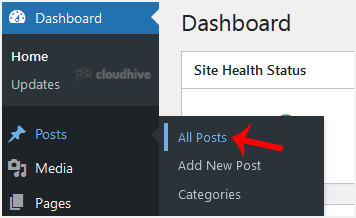
It is possible to delete posts in bulk using WordPress. You can also delete selected posts in bulk.1. Log in to the WordPress dashboard. 2. From the Dashboard menu, go to Posts and click on All Posts. 3. Checkmark the top checkbox to select all posts.4. Click on Bulk Actions and select Move to Tr...
Tutorial
How to Remove a Post in WordPress
You can remove the published or draft post in WordPress.1. Log in to the WordPress dashboard. 2. From the Dashboard menu, go to Posts and click on All Posts.3. Hover your mouse to the post you want to remove, and click on Trash. You will get a message that the post has been moved to Trash.
 Tutorial
How to Write and Publish Your First Blog Post in WordPress
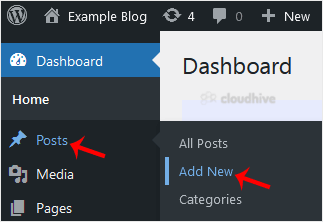
Writing your first blog post is a fascinating thing. Follow the steps below to do so in WordPress. 1. Log in to the WordPress dashboard. 2. From the Dashboard menu, go to Posts and click on Add New.3. Enter your post title and write your blog post.4. Under the Post tab, click on Tags, type post-r...
Tutorial
How to Remove Sample Comments and Posts From WordPress
You get sample comments and posts in a fresh WordPress install. You can easily remove them in the following way.1. Log in to the WordPress dashboard. 2. From the Dashboard menu, go to Posts and click on All Posts.3. Hover the mouse on the sample post and click on Trash.4. Now, do the same with th...
Tutorial
How to Edit File in the SiteWorx File Manager
You can use SiteWorx's inbuilt file manager to edit files on your website. 1. Log in to your SiteWorx account. 2. In the File Manager section, click on File Manager. 3. Navigate to the directory where your file is located. 4. Click on the file you want to edit. 5. Click on Edit. 6. Make changes t...
Tutorial
How to Access Webalizer in SiteWorx
Webalizer is an open-source web analytics tool. Follow the steps below to access Webalizer. 1. Log in to your SiteWorx account. 2. In the Statistics section, click on Webalizer. 3. Your Webalizer Statistics will open in a new window. Now you know how to access Webalizer in SiteWorx and check your...
Tutorial
How to Change the Language in SiteWorx
SiteWorx supports many languages. If you want to change your SiteWorx's language to a native one, you should follow this tutorial. 1. Log in to your SiteWorx account. 2. In the Administration section, click on User Accounts. 3. Click on the Pencil icon attached to your SiteWorx account. 4. Select...