
cPanel
How to Access Softaculous in SiteWorx
Softaculous is a one-click script installer that automates the installation of web applications to a website. You can access it via SiteWorx. 1. Log in to your SiteWorx account. 2. In the Additional Features section, click on Sofataculous. 3. SiteWorx will open the Softaculous interface.If you wa...
cPanel
What is Softaculous? - SiteWorx
Softaculous is an Auto-Installer that allows the automated installation of a script through a single click. Softaculous maintains various popular scripts and also allows you to automatically upgrade the web application without any hassle.You can Install WordPress, Joomla, Drupal, MyBB Forum, SMF,...
cPanel
PHP Error: Allowed Memory Size of x Bytes Exhausted
If you are getting an error such as "Allowed memory size of... in file /directory/folder/yourscript.php", you can use an htaccess file to resolve this problem. If the error does not go away even after applying the htaccess code, you should contact us. We will do our best to help you. Place this c...
cPanel
How to Redirect a Page to Another Page or Website Using htaccess
If a page on your website no longer exists and you want to redirect it to a new page or website, you can use the dot htaccess file to redirect visitors.Redirect from a page/directory to another domain or the main domain: Redirect from a specific page to a domain: RewriteEngine onRedirect 301 /myp...
 cPanel
How to Install FUDforum via Softaculous in cPanel
Softaculous helps you install web applications very easy. Please, follow the steps below to install FUDforum. 1. Log in to your cPanel account. 2. In the Software section, click on Softaculous Apps Installer.3. cPanel will redirect you to the Softaculous interface.4. On the left side, type FUDfor...
 cPanel
How to Update the DNS Nameservers at 123-Reg
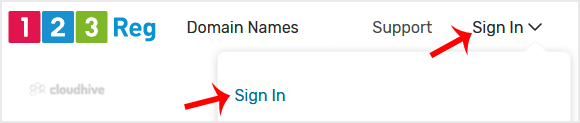
You can find our nameservers in your hosting welcome email. You need to update your domain nameservers to our nameservers.If your domain is registered on 123-Reg, you should follow this tutorial to update your domain's Nameservers.1. Open the 123 Reg website and click on Sign In. Then, click on "...
cPanel
How to Install Beehive Forum via Softaculous in cPanel
Softaculous helps you install web applications very easy. Please, follow the steps below to install Beehive. 1. Log in to your cPanel account. 2. In the Software section, click on Softaculous Apps Installer.3. cPanel will redirect you to the Softaculous interface.4. On the left side, type Beehive...
cPanel
How to Install miniBB Forum via Softaculous in cPanel
Softaculous helps you install web applications very easy. Please, follow the steps below to install miniBB Forum. 1. Log in to your cPanel account. 2. In the Software section, click on Softaculous Apps Installer.3. cPanel will redirect you to the Softaculous interface.4. On the left side, type mi...
cPanel
How to Install bbPress Forum via Softaculous in cPanel
Softaculous helps you install web applications very easy. Please, follow the steps below to install bbPress Forum. 1. Log in to your cPanel account. 2. In the Software section, click on Softaculous Apps Installer.3. cPanel will redirect you to the Softaculous interface.4. On the left side, type b...
cPanel
How to Install Phorum Forum via Softaculous in cPanel
Softaculous helps you install web applications very easy. Please, follow the steps below to install Phorum Forum. 1. Log in to your cPanel account. 2. In the Software section, click on Softaculous Apps Installer.3. cPanel will redirect you to the Softaculous interface.4. On the left side, type Ph...
cPanel
How to Install FluxBB Forum via Softaculous in cPanel
Softaculous helps you install web applications very easy. Please, follow the steps below to install FluxBB Forum. 1. Log in to your cPanel account. 2. In the Software section, click on Softaculous Apps Installer.3. cPanel will redirect you to the Softaculous interface.4. On the left side, type Fl...
cPanel
How to Install XMB Forum via Softaculous in cPanel
Softaculous helps you install web applications very easy. Please, follow the steps below to install XMB Forum. 1. Log in to your cPanel account. 2. In the Software and Services section, click on Softaculous Icon.3. cPanel will redirect you to the Softaculous interface.4. On the left side, type XM...