
 Tutorial
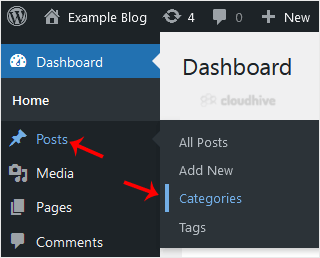
How to Add a New Category in WordPress
WordPress categories are handy for you to organize posts. You can create categories and sub-categories, while posts can be assigned to multiple categories. 1. Log in to the WordPress dashboard. 2. From the Dashboard menu, go to Posts and click on Categories. 3. Enter the following details in Add ...
 Tutorial
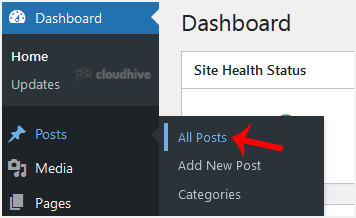
How to Bulk Delete Posts in WordPress
It is possible to delete posts in bulk using WordPress. You can also delete selected posts in bulk.1. Log in to the WordPress dashboard. 2. From the Dashboard menu, go to Posts and click on All Posts. 3. Checkmark the top checkbox to select all posts.4. Click on Bulk Actions and select Move to Tr...
Tutorial
How to Remove a Post in WordPress
You can remove the published or draft post in WordPress.1. Log in to the WordPress dashboard. 2. From the Dashboard menu, go to Posts and click on All Posts.3. Hover your mouse to the post you want to remove, and click on Trash. You will get a message that the post has been moved to Trash.
 Tutorial
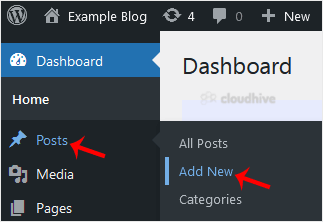
How to Write and Publish Your First Blog Post in WordPress
Writing your first blog post is a fascinating thing. Follow the steps below to do so in WordPress. 1. Log in to the WordPress dashboard. 2. From the Dashboard menu, go to Posts and click on Add New.3. Enter your post title and write your blog post.4. Under the Post tab, click on Tags, type post-r...
Tutorial
How to Remove Sample Comments and Posts From WordPress
You get sample comments and posts in a fresh WordPress install. You can easily remove them in the following way.1. Log in to the WordPress dashboard. 2. From the Dashboard menu, go to Posts and click on All Posts.3. Hover the mouse on the sample post and click on Trash.4. Now, do the same with th...
 cPanel
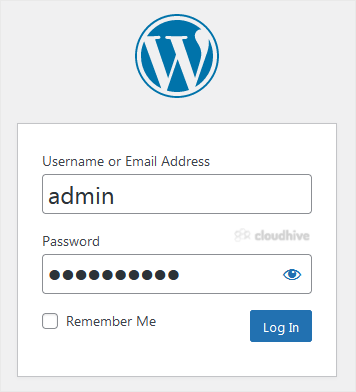
How to Access the WordPress Admin Dashboard
WordPress is an easy to work with CMS software. To access a WordPress account, please follow these instructions: 1. Open https://example.com/wp-admin in the web browser. Do not forget to replace example.com with your domain name. 2. Enter your WordPress credentials and click on Login. 3. If your ...
 cPanel
How to Install GRAV via Softaculous in cPanel
Softaculous helps you install web applications very easy. Please, follow the steps below to install GRAV. 1. Log in to your cPanel account. 2. In the Software section, click on Softaculous Apps Installer.3. cPanel will redirect you to the Softaculous interface.4. On the left side, type GRAV in th...
cPanel
How to Install ProcessWire via Softaculous in cPanel
Softaculous helps you install web applications very easy. Please, follow the steps below to install ProcessWire. 1. Log in to your cPanel account. 2. In the Software section, click on Softaculous Apps Installer.3. cPanel will redirect you to the Softaculous interface.4. On the left side, type Pro...
cPanel
How to Install Fork via Softaculous in cPanel
Softaculous helps you install web applications very easy. Please, follow the steps below to install Fork. 1. Log in to your cPanel account. 2. In the Software section, click on Softaculous Apps Installer.3. cPanel will redirect you to the Softaculous interface.4. On the left side, type Fork in th...
cPanel
How to Install Bolt via Softaculous in cPanel
Softaculous helps you install web applications very easy. Please, follow the steps below to install Bolt. 1. Log in to your cPanel account. 2. In the Software section, click on Softaculous Apps Installer.3. cPanel will redirect you to the Softaculous interface.4. On the left side, type Bolt in th...
cPanel
How to Install ImpressPages via Softaculous in cPanel
Softaculous helps you install web applications very easy. Please, follow the steps below to install ImpressPages. 1. Log in to your cPanel account. 2. In the Software section, click on Softaculous Apps Installer.3. cPanel will redirect you to the Softaculous interface.4. On the left side, type Im...
cPanel
How to Install Geeklog via Softaculous in cPanel
Softaculous helps you install web applications very easy. Please, follow the steps below to install Geeklog. 1. Log in to your cPanel account. 2. In the Software section, click on Softaculous Apps Installer.3. cPanel will redirect you to the Softaculous interface.4. On the left side, type Geeklog...