
How to Check VPS Specifications and Virtualization Info in Virtualizor Tutorial

How to Check VPS Specifications and Virtualization Info in Virtualizor

You can check VPS specifications such as RAM, disk space, virtualization, IP Address, etc., from the Virtualizor Control Panel.

1. Log in to your Virtualizor Control Panel.

2. From the left side panel, click on List VPS.

3. Under Information you can see the allocated RAM, CPU cores, disk space, and bandwidth of your VPS.
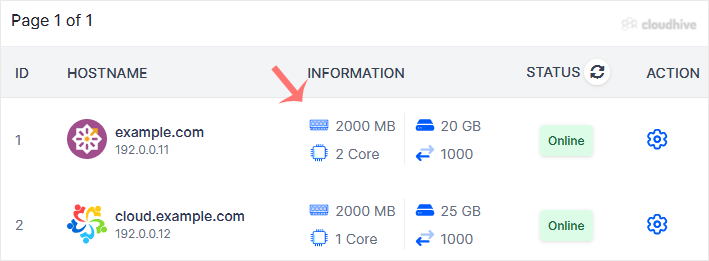
4. To check the resource usage details of the VPS, click on the Wrench Icon next to the VPS.

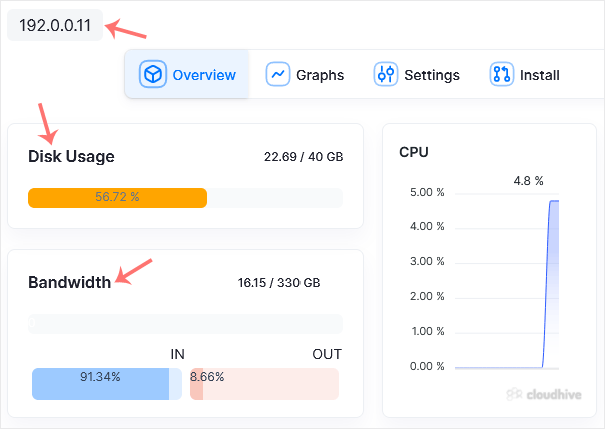
5. On the Management page, you can find the VPS IP, disk usage, bandwidth, and other details.
Hope this tutorial is helpful to you.

Share: Twitter LinkedIn WhatsApp

Expert Knowledge

Articles written by certified WHMCS developers and hosting professionals.

Regularly Updated

Fresh content published regularly to keep you up to date with the latest.

Community Focused

Content built around real questions and challenges from our community.

Actionable Tips

Every article includes step-by-step guides you can apply immediately.