
You can cancel pre-approved, automatic payments, or a subscription in your PayPal account.
1. Log in to your PayPal account.
2. Click on the settings icon.

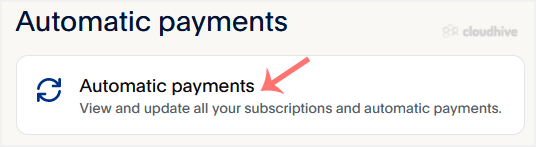
3. Go to the Payments menu and click on Automatic payments.
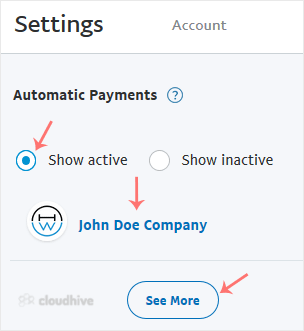
4. Tick-mark Show Active. If there is an active subscription, it will be displayed. In the case of many subscriptions, click on See More.
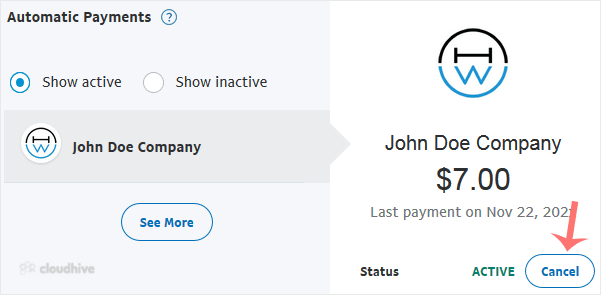
5. Click on the merchant's store name, and it will display full subscription details. Click on Cancel.
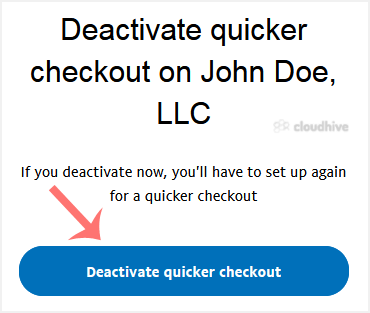
6. Confirmation message will display. Click Cancel Automatic Payments.
Now you know how to cancel an automatic subscription in PayPal and avoid future charges.